We are excited to announce the release of the common German-French electronic invoice ZUGFeRD / Factur-X in Dynamics 365 for Finance and SCM. This plug-and-play solution in its “Light” version does not require any customisation and can be easily installed in the standard Electronic Reporting module of D365. It supports the ZUGFeRD 2.2-2.5 / Factur-X 1.07-1.09 profile EN 16931, also known as the “COMFORT” profile, but also “BASIC”, “XRECHNUNG” and the “EXTENDED” profiles. All profiles except the “BASIC” meet the tax law requirements and must be accepted by customers unless explicitly denied.
In the ZUGFeRD/Factur-X standard, the invoicing information is included in an XML payload attached to a human-readable PDF file (see https://de.wikipedia.org/wiki/ZUGFeRD). The PDF document is just a visualisation of the electronic content, what counts is the XML attachment. The XML file is named factur-x.xml both in France and in Germany and it is attached to at the PDF document level; XMP metadata in the PDF indicate the profile:
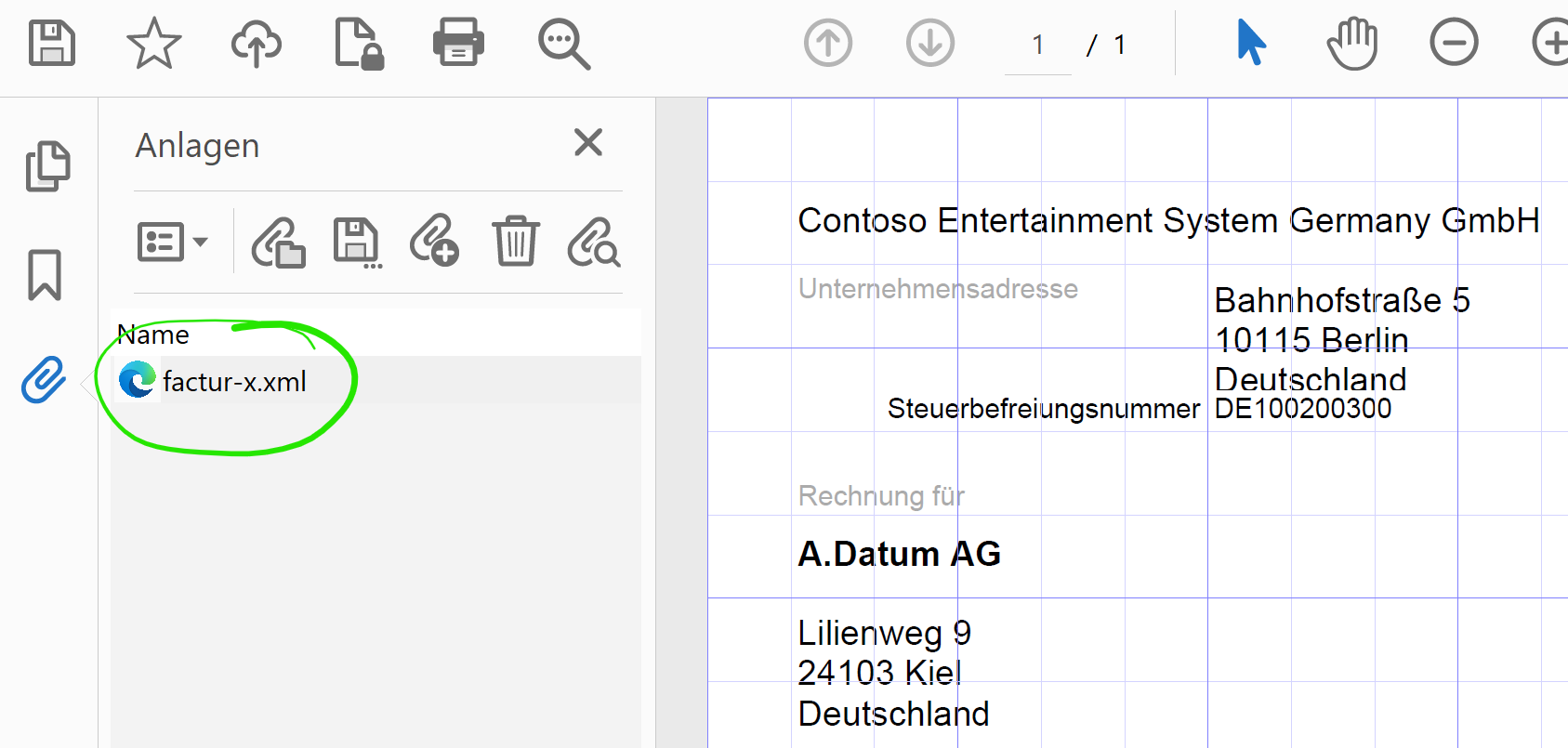
Here is an example of a “Comfort” attachment: factur-x.xml
Our solution, which utilizes Configurable business documents in D365, supports Sales invoices with separate buyer, seller, and order accounts, as well as the Free text invoice. Other types of invoices such as the Project invoices, can be provided upon request at a discounted price. Our solution also handles form notes, line and header notes and footers, line discounts, total discounts, and cash discounts, document level and line level charges, properly reflecting VAT for domestic, EU, and export sales. The settlement instructions orchestrate a SEPA credit transfer or a SEPA direct debit withdrawal; partially prepaid invoices are properly interpreted.
In addition, the EXTENDED profile introduces structured cash discounts, HS (customs Harmonized System = Intrastat) codes, countries of origin, standardised VATEX exemption codes, and more. To ensure backward compatibility and in response to customer requests, support for the BASIC and XRECHNUNG profiles has also been added. The XRECHNUNG is not a hybrid invoice, but an XML-only format; here is an example: xrechnung.xml. A hybrid invoice with an embedded xrechnung.xml is not prohibited, but very uncommon; this would work with our solution, too.
The solution is available in French, German, British and American English, Spanish. The PDF itself may be rendered in German, French, British and American English, Spanish and Dutch.
Price
| Version | Price | Deliverables | Notes |
| Light | €890 | A ZUGFeRD Sales invoice ER configuration, the XML file only | This option does not require any X++ customisations or 3rd party software and can be installed and used right away. |
| Light+ | €1200 | Same as the Light version but with 5 hours of prepaid consulting and installation | |
| Heavy | €2200 | Contains the full solution, including a PDF template, and a PDF post-processor with 8 hours of prepaid consulting and installation. | Includes the iText 7.2.6 library for .NET 4.6.1 under the GNU Affero General Public License v3 Includes the BouncyCastle 1.9.0 cryptographic library for .NET 4.0 under a MIT license. |
You may acquire the solution on the official Microsoft App Source portal: https://appsource.microsoft.com/en-us/product/dynamics-365-for-operations/er-consultgmbh1674479095356.zugferd_light_plus
Setup and use
Basic setup: “Light” and “Heavy”
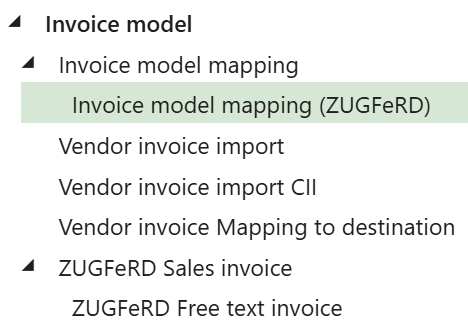
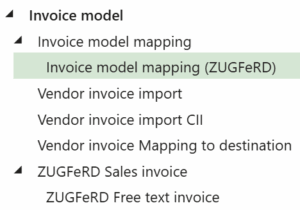 For our ZUGFeRD, the modern Invoice model v 323 and the Invoice model mapping 323.397 are used, make sure they have been imported upfront. Any other version of the Invoice model may co-exist.In the ZIP file provided to you, there is a folder BaseModelAndMapping for your convenience; you may import the 2 files with the button Exchange / Load from XML file (see below) if model 323 is missing in your environment.
- Import the Electronic configuration “ZUGFeRD Sales invoice” provided to you (Organisation administration > Electronic reporting > Configurations, button Exchange / Load from XML file). Optionally, import the custom Invoice model mapping (ZUGFeRD), see below, and the “ZUGFeRD Free text invoice“. If you decided to use the Invoice model mapping (ZUGFeRD), it must be marked Default for model mapping, and the standard one un-marked.
- Under the button Configurations / Application specific parameters / Setup, provide a mapping of the VAT (en-us: Sales tax) Print codes to the ZUGFeRD categories S, K, AE, G, O (for example, the 19% and 7% VAT belong to the “S” category). Also provide a mapping of the D365 Unit of measure codes to the UNECE Recommendation No. 20/21 list “Codes for Units of Measure Used in International Trade” (see Codes for Units of Measure used in International Trade: Recommendation N°.20 – Revision 7 | UNECE). For instance, a piece has the standard code H87. A sample parameter setup can be downloaded here: 03-01-2023 03.29.45 pm_ZUGFeRD Sales invoice.277.11, then imported right into this form at once. Have the mappings been imported and adopted to your business, set the Application specific parameters State to Completed.
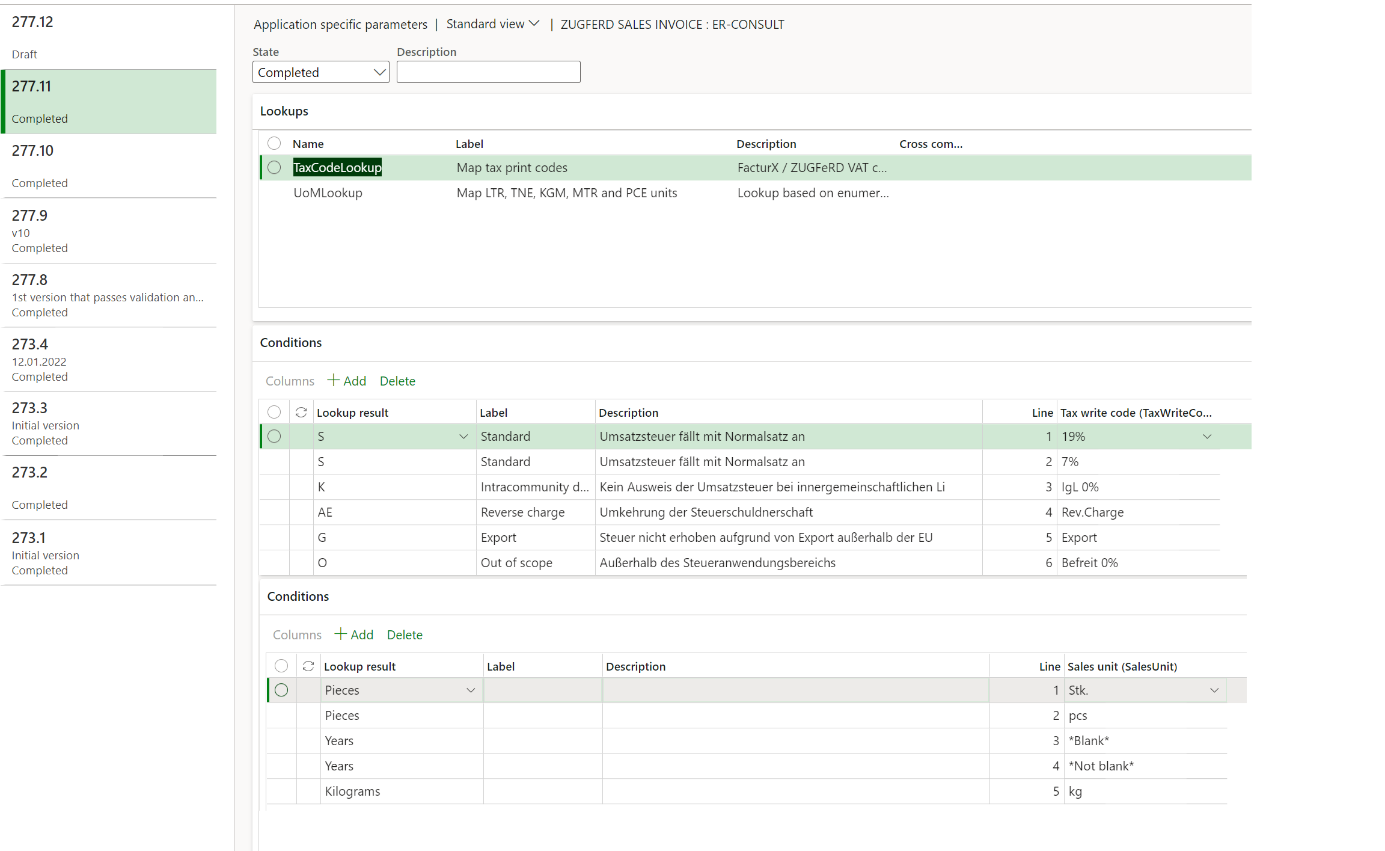

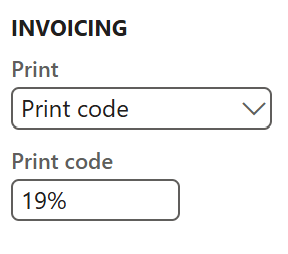 Pay attention to the sample VAT print codes on the screenshot above: the standard Invoice model mapping does not pass tax rates to the report, and the VAT Print code must contain the VAT rate in numbers, if applicable. In other words, they should look like “19%” and “7%” in Germany or “20%” and “5,5%” in France. In addition, the parameter Invoicing / Print at the VAT groups (en-us: Sales tax groups) must be set to VAT codes (en-us: Sales tax codes). Hint: only the VAT payable codes are relevant (de: “Umsatzsteuer“, not “Vorsteuer“).
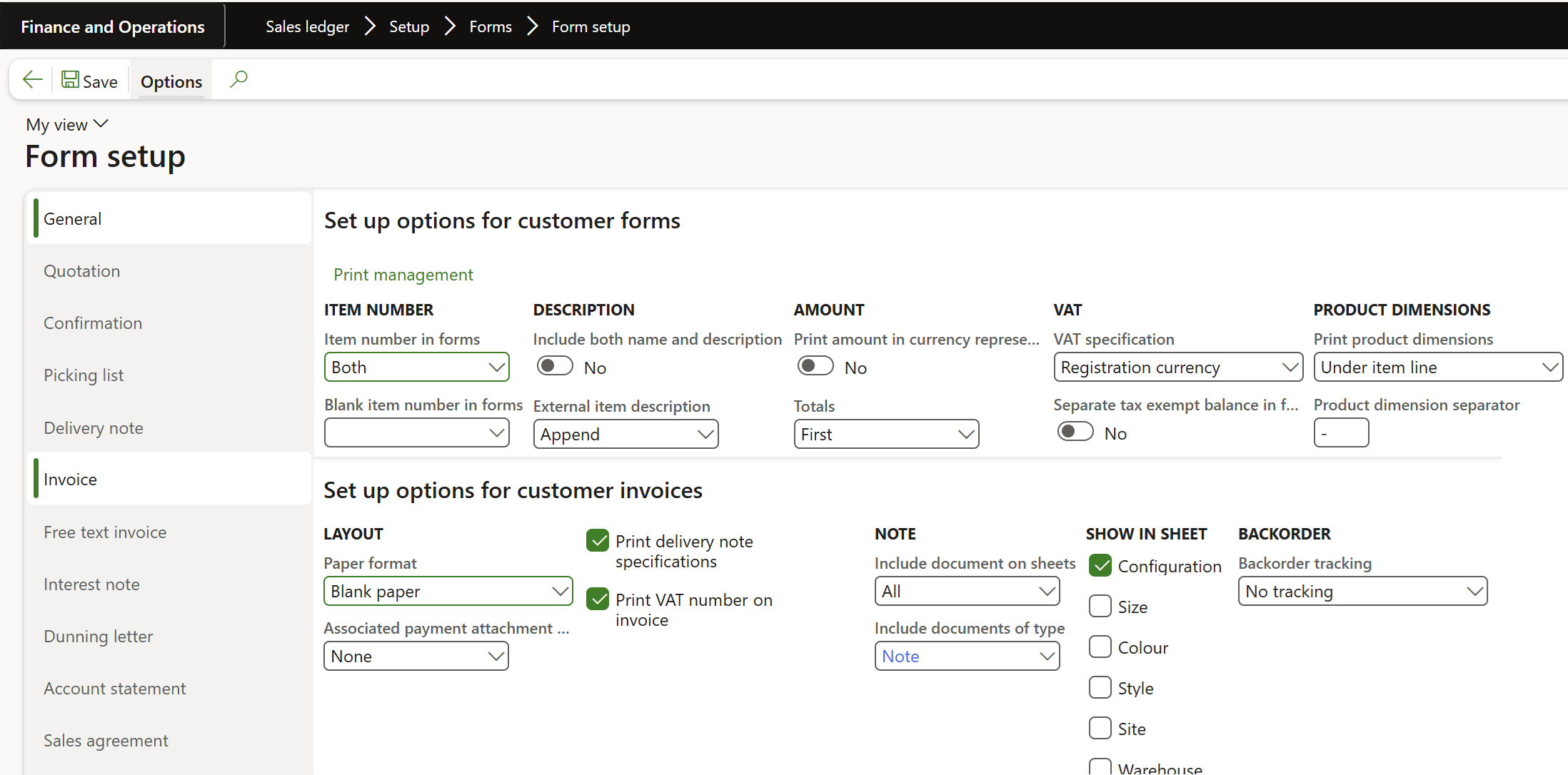
- Open Sales ledger (en-us: Accounts receivable) > Setup > Forms > Form setup. Make sure that the VAT specification option is set to “Registration currency“: it is essential for the mandatory <ram:ApplicableTradeTax> summary at the end of the XML document. Other parameters are not critical and only affect the visualisation in PDF; for example, you may wish to display external item numbers: Item number in forms = Both.
- On the Invoice and Free text invoice tabs, make sure the option Print VAT number on invoice is turned ON: it is mandatory. The option Print delivery note specifications should be better set, too: it populates the <ActualDeliverySupplyChainEvent> and the <DeliveryNoteReferencedDocument> tags. The Include documents… parameters activate the display of line and header notes.
- [Skip when using a 3rd party report generator]Open Print management and select the Report format = ZUGFeRD Sales invoice at the Customer invoice node. Specify a Footer, too: it becomes an AAK note. Repeat it for the the ZUGFeRD Free text invoice, if needed. Use conditional print management settings if only a subset of customers agreed to receive the ZUGFeRD invoice (check a guidance below among the “Useful links”).
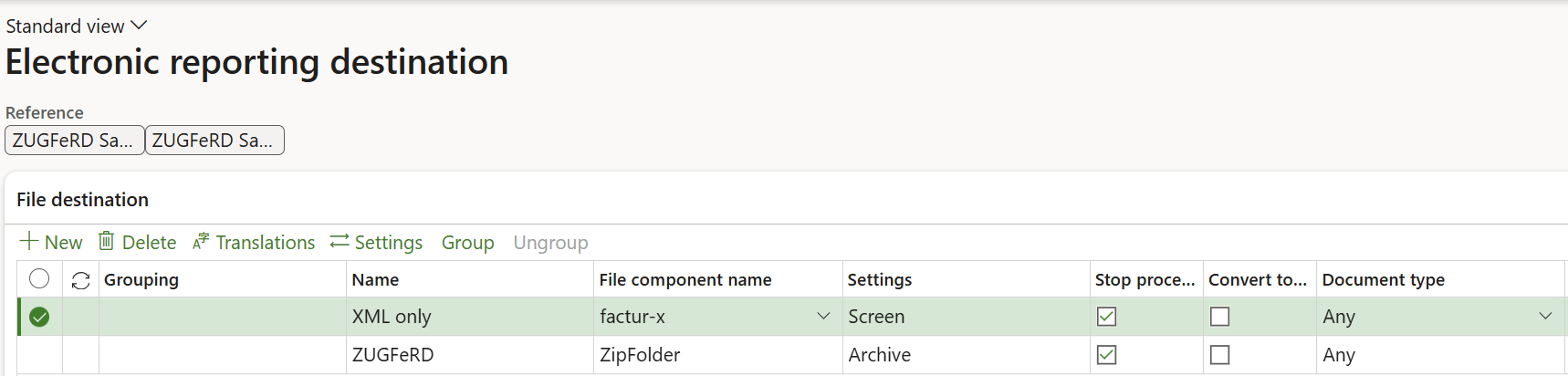
- [Skip when using a 3rd party report generator or the Heavy version]Create a new ER destination (Organisation administration > Electronic reporting > Electronic reporting destination) for the report ZUGFeRD Sales invoice, and the ZUGFeRD Free text invoice if needed. Under File destination, add a new line, choose the factur-x file component and divert it to a destination of your choice (for instance, the Screen).

Custom Mapping and the EXTENDED profile
The EXTENDED profile, compared to the EN16931 profile (also known as the ‘COMFORT’ profile), adds the following elements
- Serial numbers, batch numbers per line (not present on a Free text invoice a.k.a. “FTI”);
- Delivery note numbers and dates per line (not present on a FTI);
- Buyer’s PO and Seller’s SO reference per line; be aware that neither the CII nor the UBL syntax disclose a deviating “order” account per line, and that the standard, non-customised invoice data source does not expose the per-line SO id: only the “main” sales order number is known;
- Ship to party (a deviating delivery address, see below);
- Not [yet] in France: Structured payment terms, such as cash discounts in %; one level of cash discounts is supported out of the box, it means no chained cash discounts; in the XRECHNUNG profile, the cash discount is rendered with segments such as #SKONTO#TAGE=30#PROZENT=0.50#, separated by CRLF;
- New in 2.4: Delivery terms with the destination country and the “place” (for DAP and similar INCOTERMS, where the place is taken from the field Reason for export at the sales invoice header);
- <ExemptionReasonCode> i.e., the reason for exemption from VAT obligation provided as a CEF VATEX code. New in 2.5: reason for VAT exemption of the header charges.
 We recommend using the EXTENDED profile wherever possible. For France, the e-invoicing reform defines the EXTENDED-CTC-FR profile as a French subset of EXTENDED, designed to accommodate the additional requirements of the French CTC framework.
In the Root of the ZUGFeRD Sales invoice format mapping, a variable “Profile” is present. It acts as a profile selector. The values “2”, “3”, “4” and “5” are reserved for the profiles BASIC, EN 16931, XRECHNUNG, and EXTENDED, respectively. The Light version is preset to the EXTENDED profile (5); the Heavy version is EN16931 by default (3).
To switch to the XRECHNUNG profile for instance, derive your own version of the format, open the format Designer, select the Profile node to the right on the Mapping tab, click Edit and let the formula return “4”. Through a derived mapping, this variable may be even tied to a property of the customer (some CustTable field) to act as a selector: the customer will receive his preferred profile.
Similarly, to enable test mode, set the TestIndicator variable to true. This will insert the <ram:TestIndicator> tag into the XML, which is essential when validating transmission channels with buyers. N.B.: The TestIndicator is only allowed within the EXTENDED profile.
For the EXTENDED profile to function, the custom Invoice model mapping (ZUGFeRD) is necessary. The same custom mapping enables some features of the COMFORT and XRECHNUNG profiles, for example the country of origin or the HS code, or the city name. For the reasons of compatibility, these features – even though they belong to the COMFORT profile – are unlocked by the Profile > 3, too.
- For the batch and serial numbers to appear in the <IndividualTradeProductInstance> node, mark Show in sheet: Batch number and/or Serial number on the Invoice tab in the Form setup form (see the screenshot in the previous section).
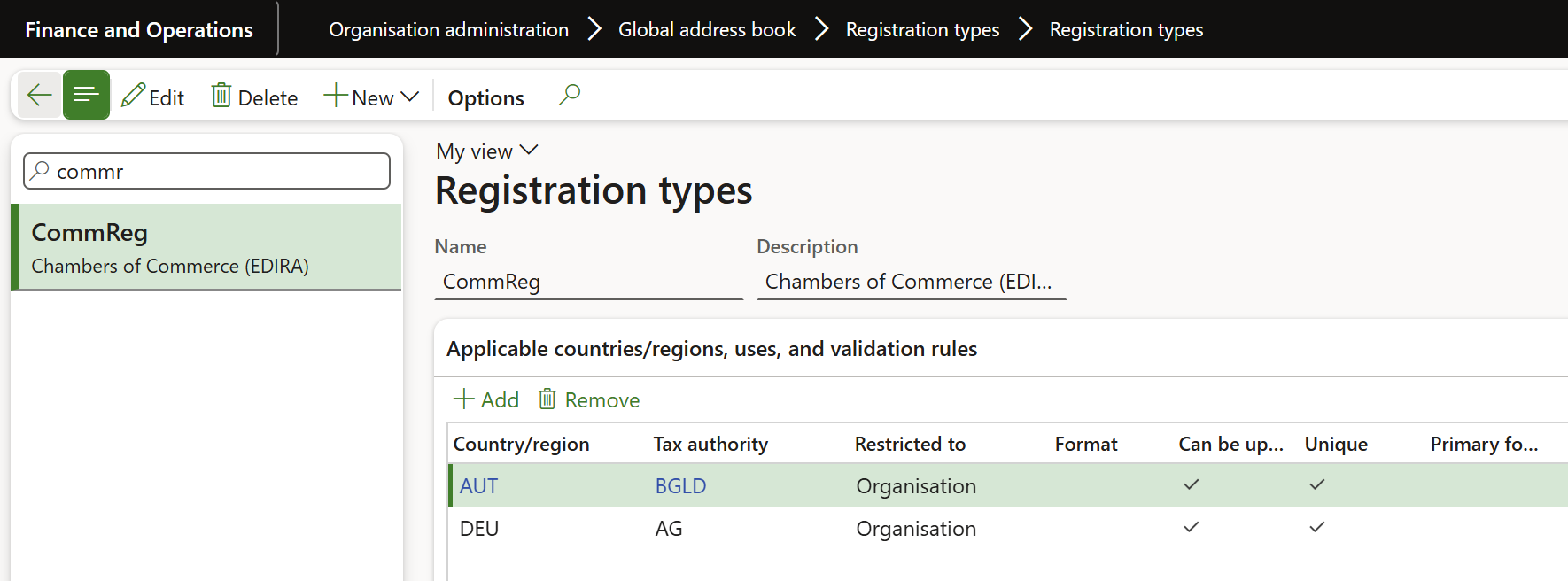
- For the output of the commercial register (de: Handelsregister or HRB) number, a dedicated Registration type must be given the Czech (!) category “Spisova znacka” under Organization administration > Global address book > Registration types > Registration categories (this is how the standard free text invoice works):
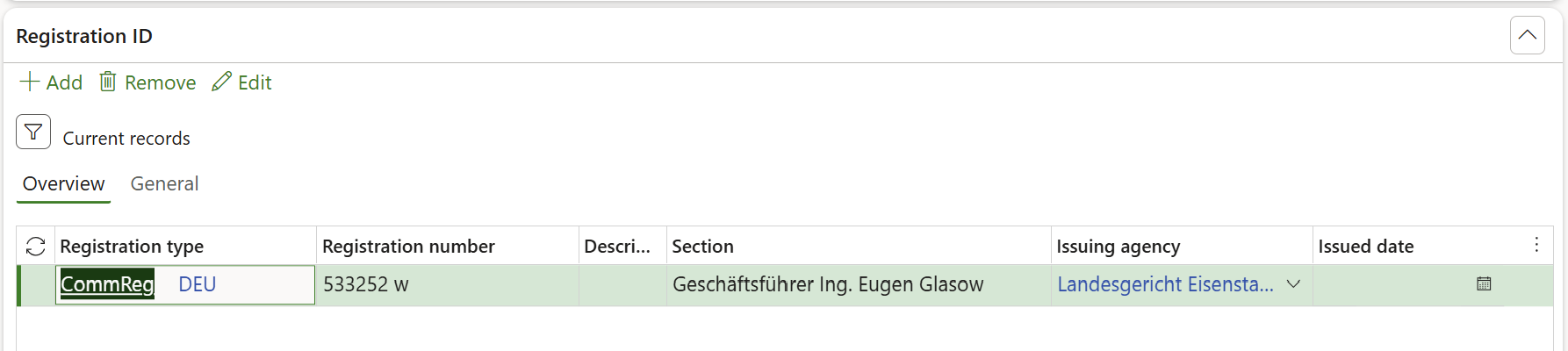
   <ram:IncludedNote>
      <ram:Content>Landesgericht Eisenstadt 533252 w Geschäftsführer...</ram:Content>
      <ram:SubjectCode>REG</ram:SubjectCode>
</ram:IncludedNote>- Before leaving the Organisation administration > Organisations > Legal entities form, check if the company Bank account is populated, and this bank account has an IBAN and a SWIFT code (the selection of alternative bank accounts nominated in foreign currencies may be implemented via the Modes of payment, we are happy to provide insight).
This concludes the EXTENDED setup. Check out the sample below, you buy what you see!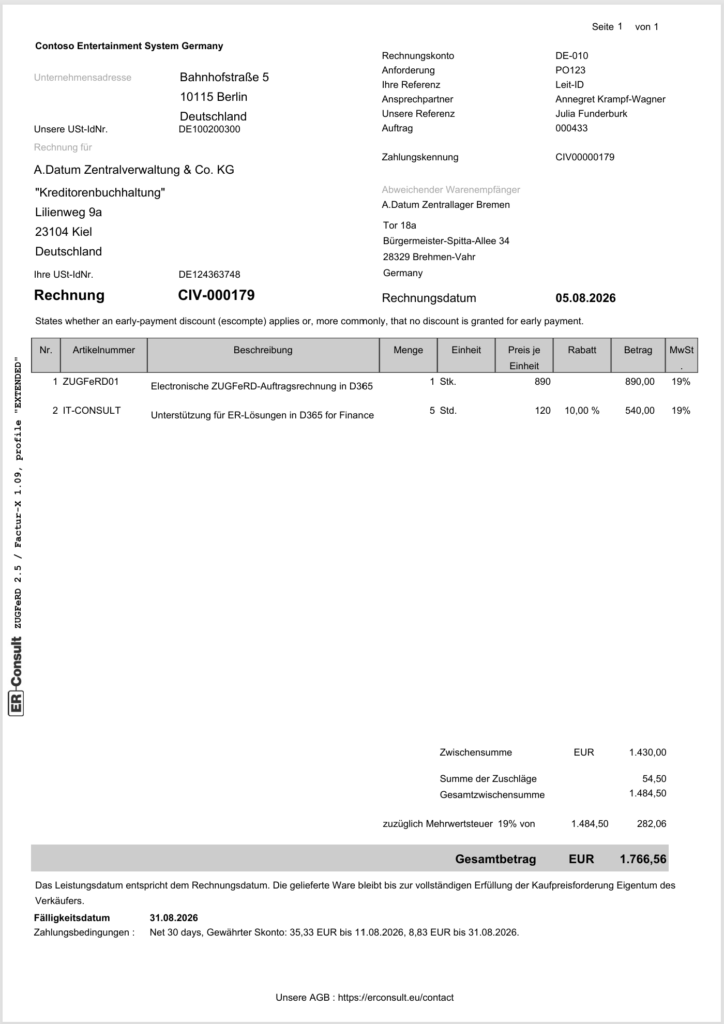
ZUGFeRD Project invoice
Our ZUGFeRD solution for Dynamics 365 Finance now supports project invoices based on PSAProjInvoice, also known as “Project invoice without billing rules“. This extends electronic invoicing to Engineer-To-Order, professional services, and construction businesses. As with the above Sales invoice, the ZUGFeRD project invoice is available in the COMFORT, XRECHNUNG and the EXTENDED profile. The EXTENDED version uses a custom mapping, which has been developed to correct shortcomings in Microsoft’s standard mapping. We do not cover classic Project invoice “ProjInvoice“, “Managed project invoice” nor “Project invoice with billing rules“.
The standard “Project invoice (Excel)” report is a useful reference when comparing the available project transaction information. The EXTENDED mapping aims to expose substantially more of that information in the electronic invoice while retaining the standard D365 invoicing workflow.
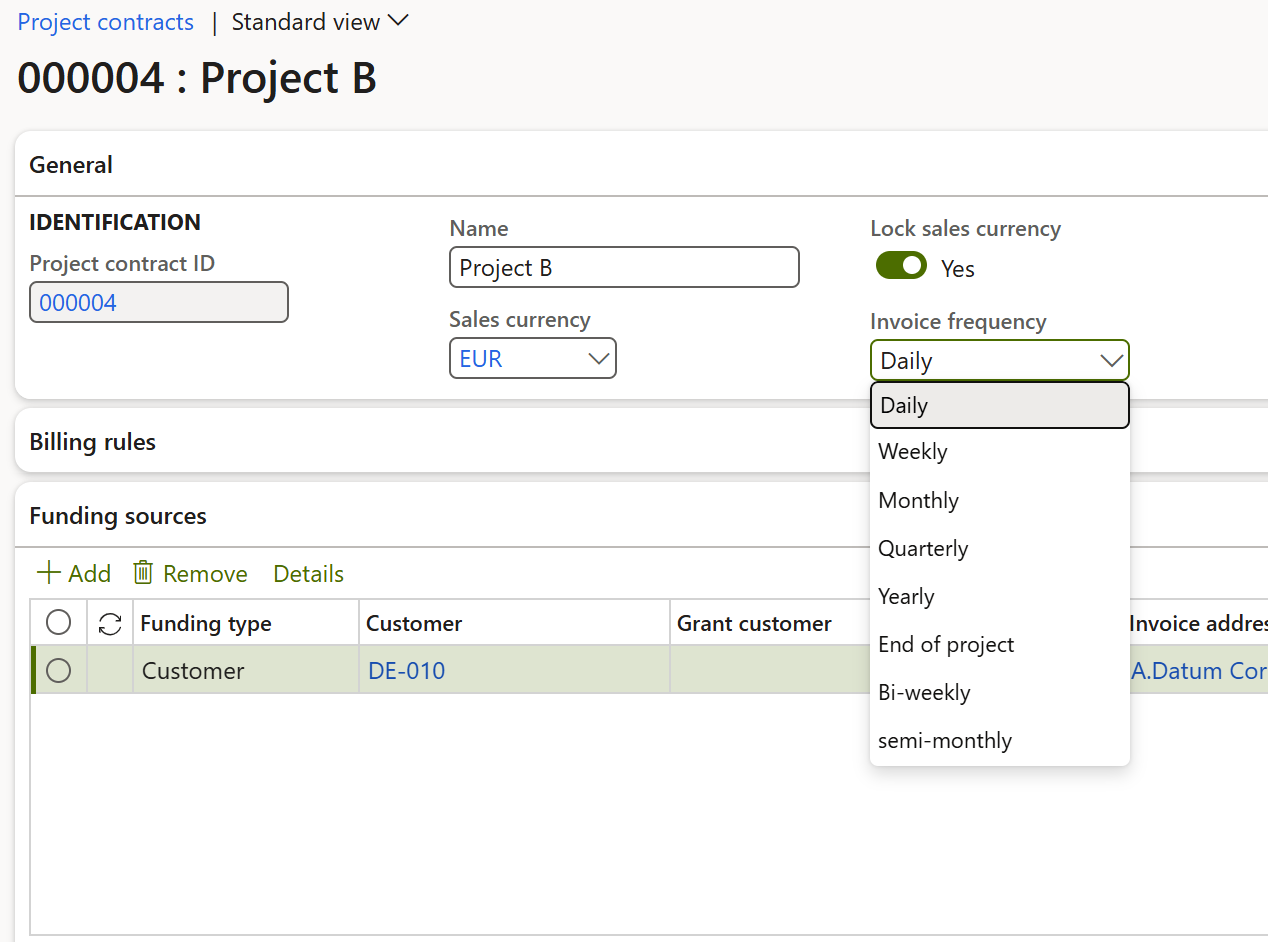 The billing period is an important part of the project invoice. This header billing period
 ram:BillingSpecifiedPeriod is derived from the Invoice frequency parameter on the project contract, with the invoice date checked against the applicable period. The Invoice date determines the relevant billing period. We look behind when determining the billing period: if the frequency = Weekly and the invoice is issued on Monday, the week that has just passed is detected as the the billing period. If the invoice is posted on Sunday – the last day of the week, then the billing period is that week. Another example: with the billing period Monthly, any invoice issued between and including 30.09.202x-15.10.202x is attributed to the billing period of September.
Prepayment invoices are identified through the Prepayment option on On Account project transactions. When this option is set, the invoice type is 386 (Prepayment invoice). Check the official documentation how to issue a prepayment invoice with the Customer advance button: Project invoicing | Microsoft Learn, Goods and Service Tax (GST) project transactions – Finance | Dynamics 365 | Microsoft Learn.

For invoices deducting a previous prepayment, the deduction is represented by a negative quantity and a positive unit price. This follows the expected CII representation and avoids negative unit prices.
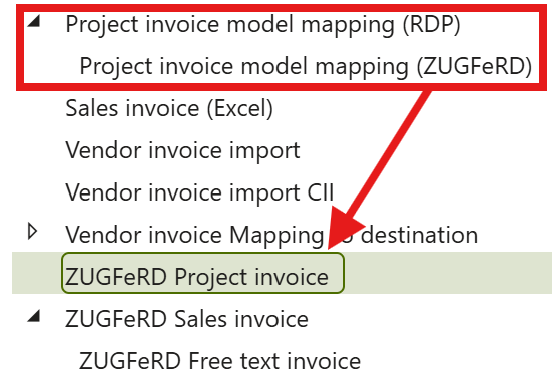
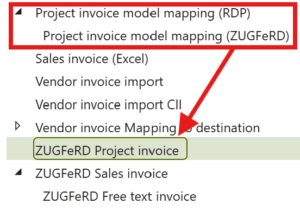 Open Organisation administration > Electronic reporting > Configurations and use the button Exchange / Load from XML file to import the following configurations in the specified order (the Microsoft configurations are required in this particular version because the standard project invoice mapping is based on an older invoice model): Invoice model 274 – the invoice model required by the standard mapping, then Project invoice model mapping (RDP) 274.48 – Microsoft’s standard project invoice model mapping, then Project invoice model mapping (ZUGFeRD) – ER-Consult’s derived mapping, which corrects Microsoft mapping issues, including the missing VAT number, and enables the EXTENDED profile, then ZUGFeRD Project invoice – the ZUGFeRD format configuration that generates the electronic project invoice. Use the latest supplied versions of the ER-Consult configurations where available.
- Now it is time to configure VAT print codes mapping and the unit mapping. Open Application specific parameters /Setup of the ZUGFeRD Project invoice after importing. The mapping of VAT print codes is identical to the ZUGFeRD sales invoice, points 3-4 above.
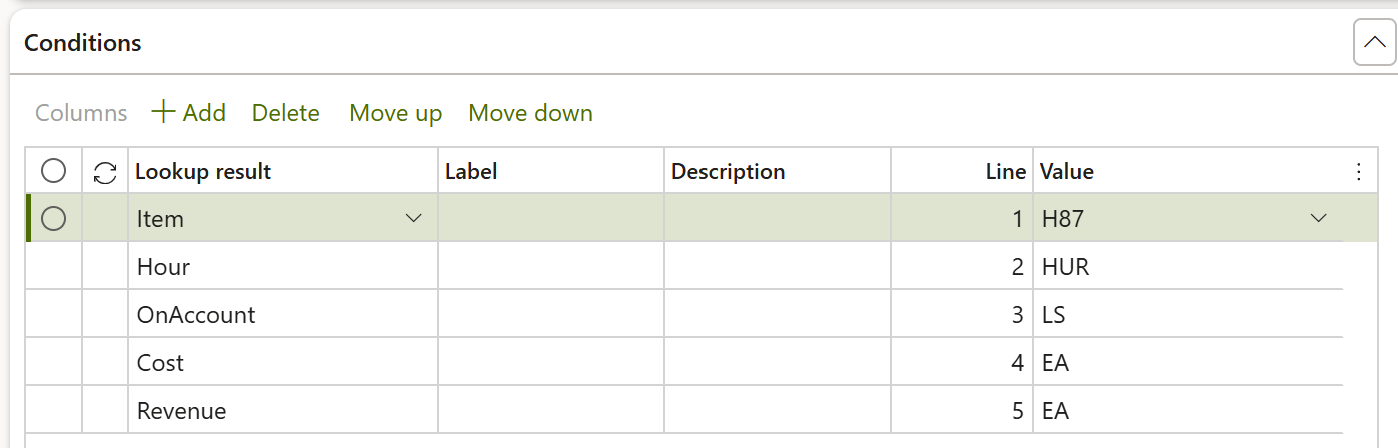
- The unit mapping differs: unlike the sales invoice format, it maps units of measure according to the project transaction type rather than the unit configured on the individual D365 transaction. A typical setup is shown below: HUR represents an hour, LS a lump sum, and H87 a piece. EA is used for cost and revenue transactions in this configuration.
- Open Project management and accounting > Setup > Forms > Form setup as with the ZUGFeRD Sales invoice, make sure that the VAT specification (en-us: “Sales tax specification”) is set to Registration currency. It is imperative.
- On the Invoice tab, make sure to Print VAT number on invoice; you may also turn on Print delivery note specifications to enable delivery note number and date information for item transactions, and the notes with Include document on sheets.
- [Skip when using a 3rd party report generator]
Back on the General tab, open the Print management. Select ZUGFeRD Project invoice as the Report format for the Project invoice without billing rules: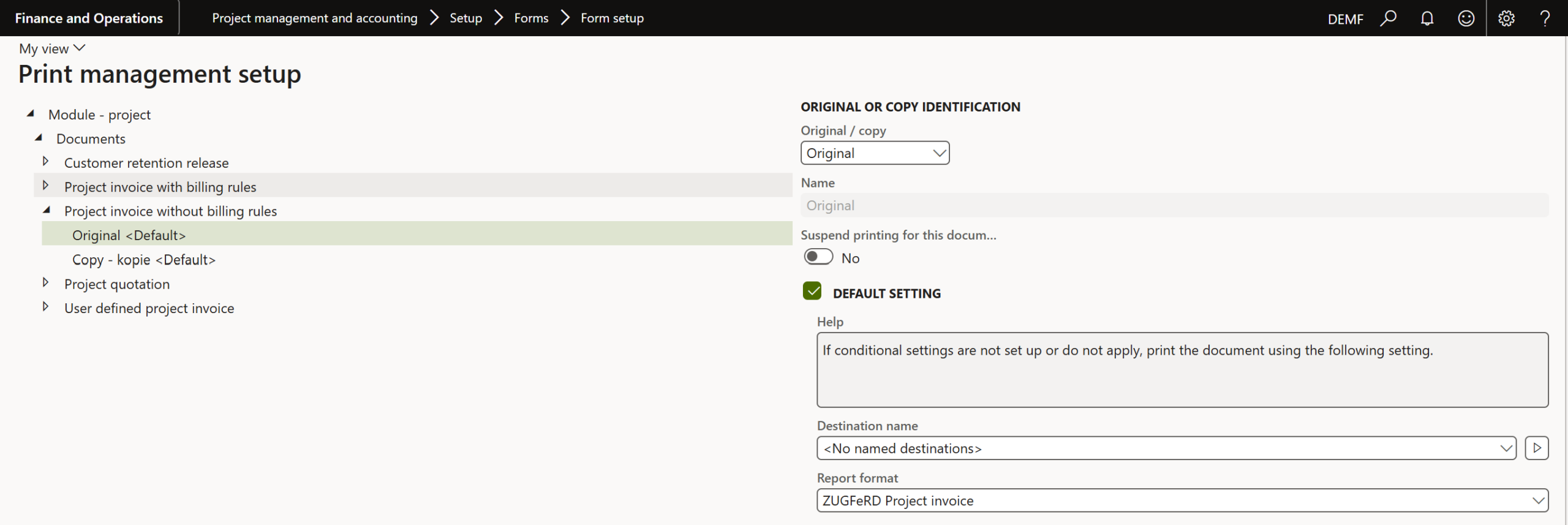
- If needed, add the Footer text to generate an additional note in the XML and PDF.
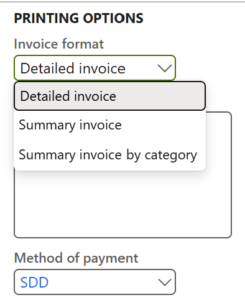 Create a new Project invoice proposal to test the e-invoice. As with the Sales invoice, a ZUGFeRD pro-forma invoice is possible and recommended: use the Print / Print preview button before posting the invoice or triggering the project invoice workflow; pay attention to the Method of payment, but first and foremost to the Invoice format among the Printing options:
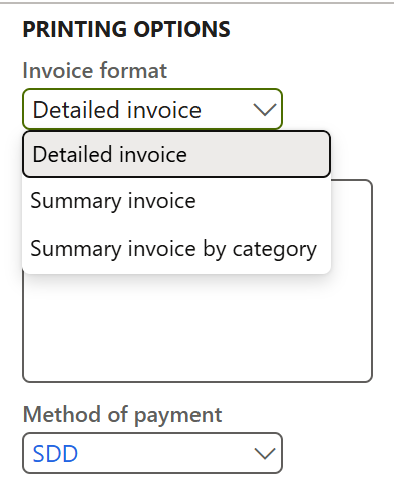
The format follows the three standard D365 project invoice printing modes:
- Detailed invoice: shows individual project transactions.
- Summary invoice by category: groups transactions by category.
- Summary invoice: summarises transactions by project transaction type.
The output depends on the selected mode and the capabilities of the ZUGFeRD profile. With COMFORT, only one level is shown. Detailed mode produces transaction lines, while the two summary modes produce the corresponding summary lines. COMFORT does not support GROUP line items.
With EXTENDED, the invoice can contain both a summary line and its associated detail lines. For example, a category subtotal can be followed by the individual transactions contributing to that amount. This makes the electronic invoice more informative without requiring separate timesheets to explain the billed amounts.
Understand the GROUP/DETAIL structure
Electronic Reporting does not support recursive structures. The implementation therefore creates a flat list of lines with one group and one detail level and represents the hierarchy through line types and numbering. For example, a group containing five detail lines can be represented as follows:
| Line number | Type | Content |
|---|---|---|
| 1 | GROUP | Summary of the transactions |
| 1.1 | DETAIL | Transaction 1 |
| 1.2 | DETAIL | Transaction 2 |
| 1.3 | DETAIL | Transaction 3 |
| 1.4 | DETAIL | Transaction 4 |
| 1.5 | DETAIL | Transaction 5 |
The summary and detail lines can appear in the order required by the format. The XML retains the two levels, while the PDF displays only the level appropriate to the selected printing mode. In summary mode, for example, the PDF remains a concise summary even when the XML contains the supporting detail lines.
The grouping logic is designed to accommodate future requirements and customised report data providers. One limitation remains in standard D365: summarisation by WBS task code is not available because ProjEmplTrans.ActivityNumber is not populated by the standard report data provider. To disable the GROUP/DETAIL structure, manipulate the isDetailed condition in the “ZUGFeRD Project invoice” format mapping.
Supplementary setup: “Heavy”
- For the Heavy version, first deploy the X++ customisations and libraries from the D365 deployable package provided to you.
- Create a new File document type in the Organisation administration > Document management > Document types list. Enter the Name of the document type exactly like this: ZUGFeRD.
- In the ER destination (see P. 9 above) choose the ZipFolder file component. Click Settings, divert the file to the Archive: set it to Enabled on the respective tab and choose file Type = ZUGFeRD from step 11. The hybrid invoice may either be shown on the Screen, or attached to the Electronic reporting job log, or dropped as an attachment to the Customer invoice journal (the latter option is particularly useful in integration scenarios, but also for the persisting storage of invoice printouts). These modes are governed by the option “Attach ZUGFeRD to” on the Attachments tab in the Electronic reporting parameters (see the Electronic reporting workspace, the button Electronic reporting parameters at the very bottom):

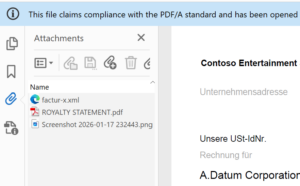 Since 2026, the “Heavy” version can also include additional attachments in the PDF invoice, such as PDF delivery notes or acceptance protocols. External attachments of the document type configured under Electronic reporting parameters, Document types > Others (see the screenshot above) are automatically embedded in the invoice PDF, provided that the attachment’s Restriction is set to External, and the file type is binary i.e., not a note or URL. These external attachments propagate from the sales order header to the posted invoice header, and get embedded into the hybrid PDF as Supplementary attachments alongside the main factur-x.xml attachment.
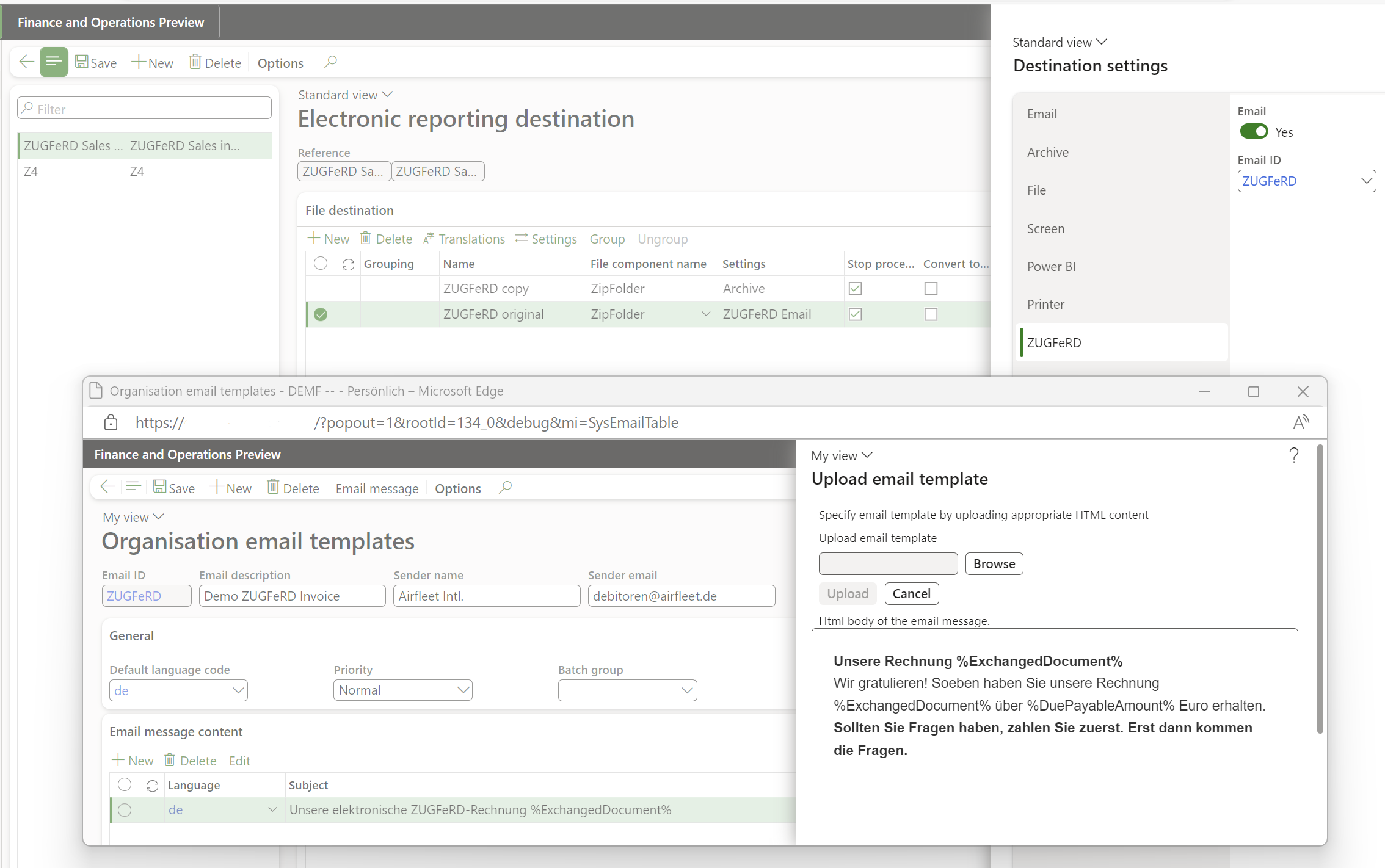
- To send the invoice per Email, add a new File destination line, click Settings, open the tab ZUGFeRD, and flip the Email slider. In the Email ID parameter, you may also select an Organisation administration > Setup > Organisation email template with an appropriate subject and a HTML body in your corporate design. You may download and use our elegant templates: ZUGFeRD_emailTemplate_EN, ZUGFeRD_emailTemplate_DE. Placeholders %ExchangedDocument% (invoice ID), %DuePayableAmount% (invoice amount) and %BuyerTradeParty% (customer ID) are supported out of the box i.e., the email subject and body are dynamic. The default Batch email provider (see System administration > Setup > Email > Email parameters) is used for the email transmission; make sure that the user account executing the batch invoicing and printing may impersonate and send on behalf of the unattended/shared mailbox “Sender email” chosen in the Organisation email template. The selection Document type in this ER destination must remain Any or Electronic.
- The steps to configure the Heavy version end here. The Electronic Reporting engine will fill out the PDF form, populate an XML file and put both into a folder (i.e. a ZIP). This ZIP file is intercepted, unpacked, and the XML part is embedded into the PDF, adding some references and mandatory attributes. The PDF file is PDF/A-3B compliant, it can be read and parsed, it passes the validations (see the links below).
- Print the sales invoice with the option Use print management turned on. The resulting PDF document is rendered on the screen (the Light version offers an XML file to download) and/or sent to the invoice customer’s email address with the role Invoice (a sole Business or primary email does NOT qualify). To test the batch invoicing mode (de: “Autofaktura”), use an Attachment option instead of the Screen in the Electronic reporting parameters.
- You may also re-print invoices out of the Invoice journal form (Sales ledger > Enquiries and reports > Invoices > …) with the button View.
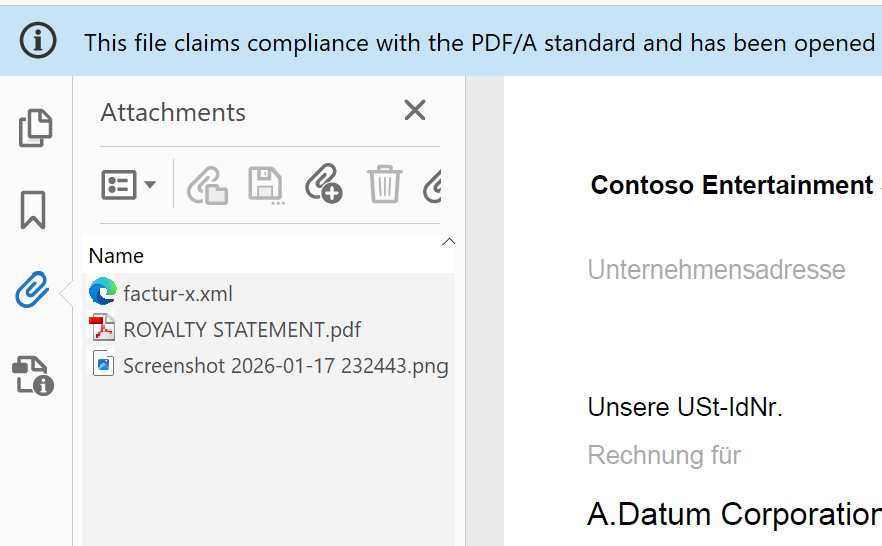
An example of a ZUGFeRD invoice with the COMFORT profile may be found here: ZUGFeRD_COMFORT.pdf
E-invoice and configurable business documents blog series
Further reading:
ZUGFeRD export: common modifications
Biens ou Services ou Mixte?
Beyond the French e-invoice: E-Reporting
ZUGFeRD 2.5 export/ Factur-X 1.09 for Dynamics 365 FO
ZUGFeRD 2.2-2.5 import for Dynamics 365 for Finance
Filling PDF Forms with Electronic Reporting in Dynamics 365 for Finance
Aktueller Stand der eRechnung in D365 for Finance (Deutschland)
Austrian Peppol-UBL e-invoice
How NOT to send an order confirmation per e-mail
Enumerate lines in Configurable Business Documents
Canvas sections in D365 Configurable Business Documents
Italian eInvoicing FatturaPA, CIG and CUP numbers, RIBA
Italian eInvoicing FatturaPA: Part 2
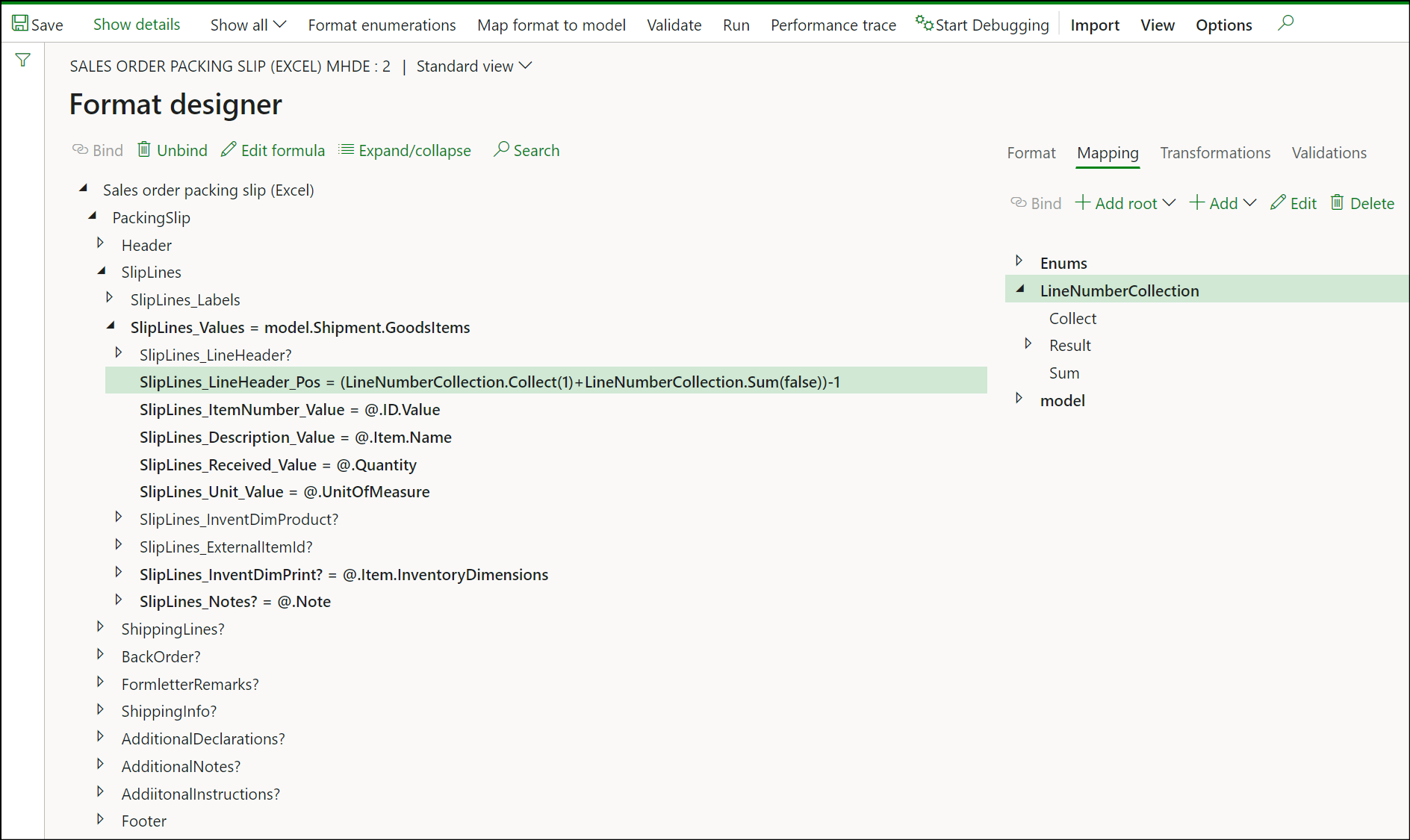
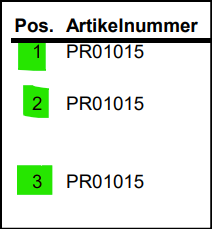
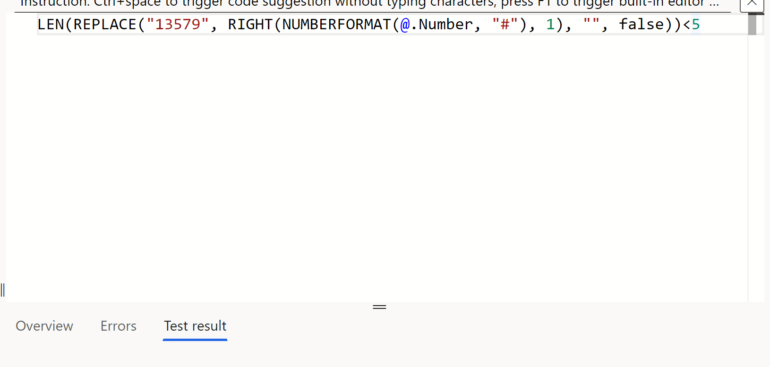
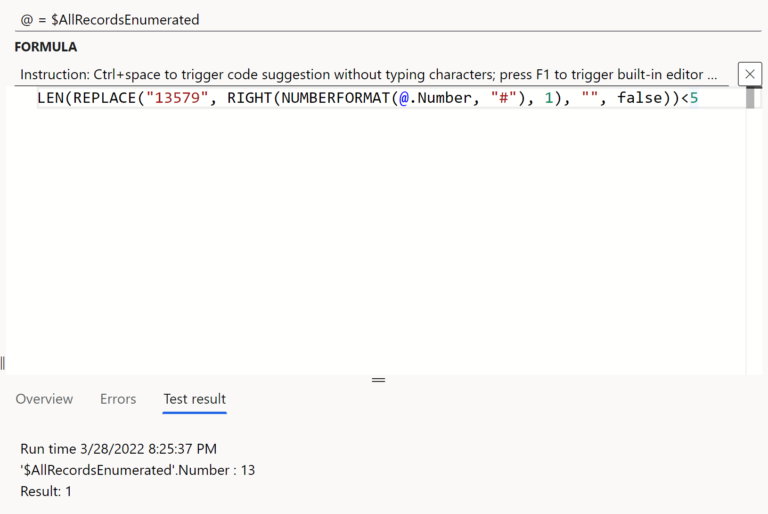
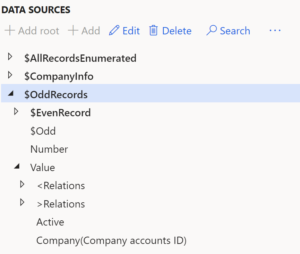
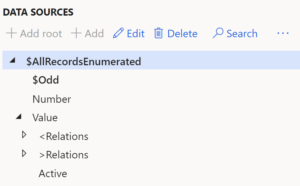 Add another Calculated field at the row level to check if the current record has an odd or an even row number: