

- Navigate to Production control > Setup > Lean production flow > Value streams and create a value stream for the material supply process. The value stream provides the organisational context for the production flow and its activities. After that create a generic logistic Production flow model.
- Create the production flow with 1 transfer activity: Lean production flow > Production flows, associated with the value stream. Add a Version.
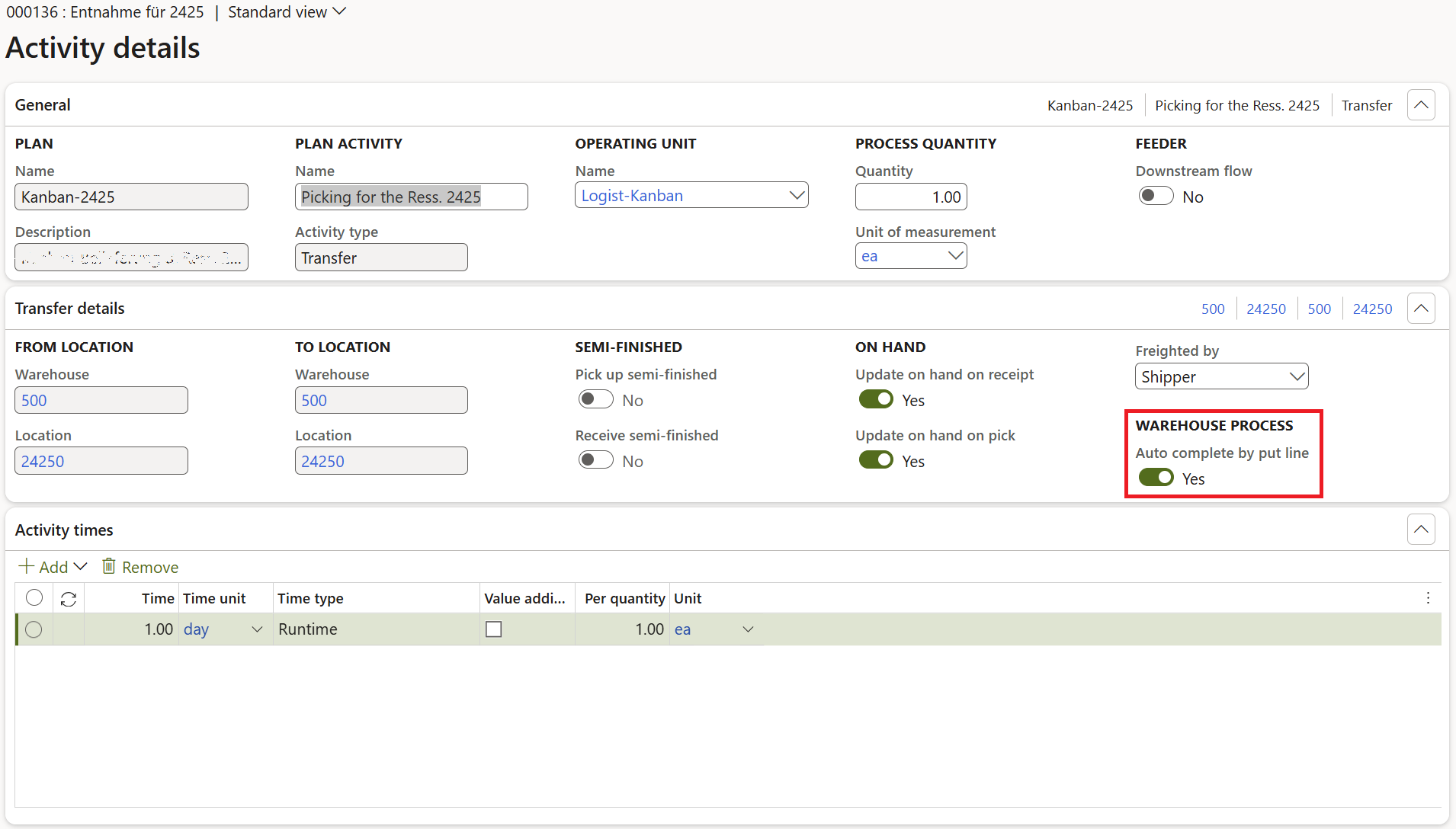
- Under the Activities button, use Create new plan activity, where in the wizard you create the transfer activity: Activity type = Transfer. The work cells are irrelevant; mark both Update on hand on receipt and Update on hand on pick.
- Choose the same “From” and “To” locations, namely the location of the resource: the activity represents the destination of the material flow. The actual source location can be determined separately by the WHS location directive.
- Enter something into the time, finish creating the activity, but then enter the Details mode and enable Auto complete by put line! This setting allows the transfer activity to be completed automatically with the last put step on the mobile device in the warehouse.
- Activate the flow version.
- Create the fixed Kanban rule: navigate to Product information management > Lean manufacturing > Kanban rules and create a rule of type Withdrawal.
- The same screw will be at more locations, potentially in containers of different sizes. Every Item-Location combination requires an own Kanban rule with a specific quantity.
- Set Replenishment strategy = Fixed. Select the transfer activity created in the previous steps as the First plan activity. This automatically populates the Receipt location of the resource. Set Register as empty = Manual.
- Specify the product and the Default quantity. This quantity defines how much material is requested when an empty container triggers replenishment i.e. the size of the box.
- Set the Fixed kanban quantity = 2 for the two-container replenishment cycle, or 1 if the replenishment is fast enough for a one-container system.
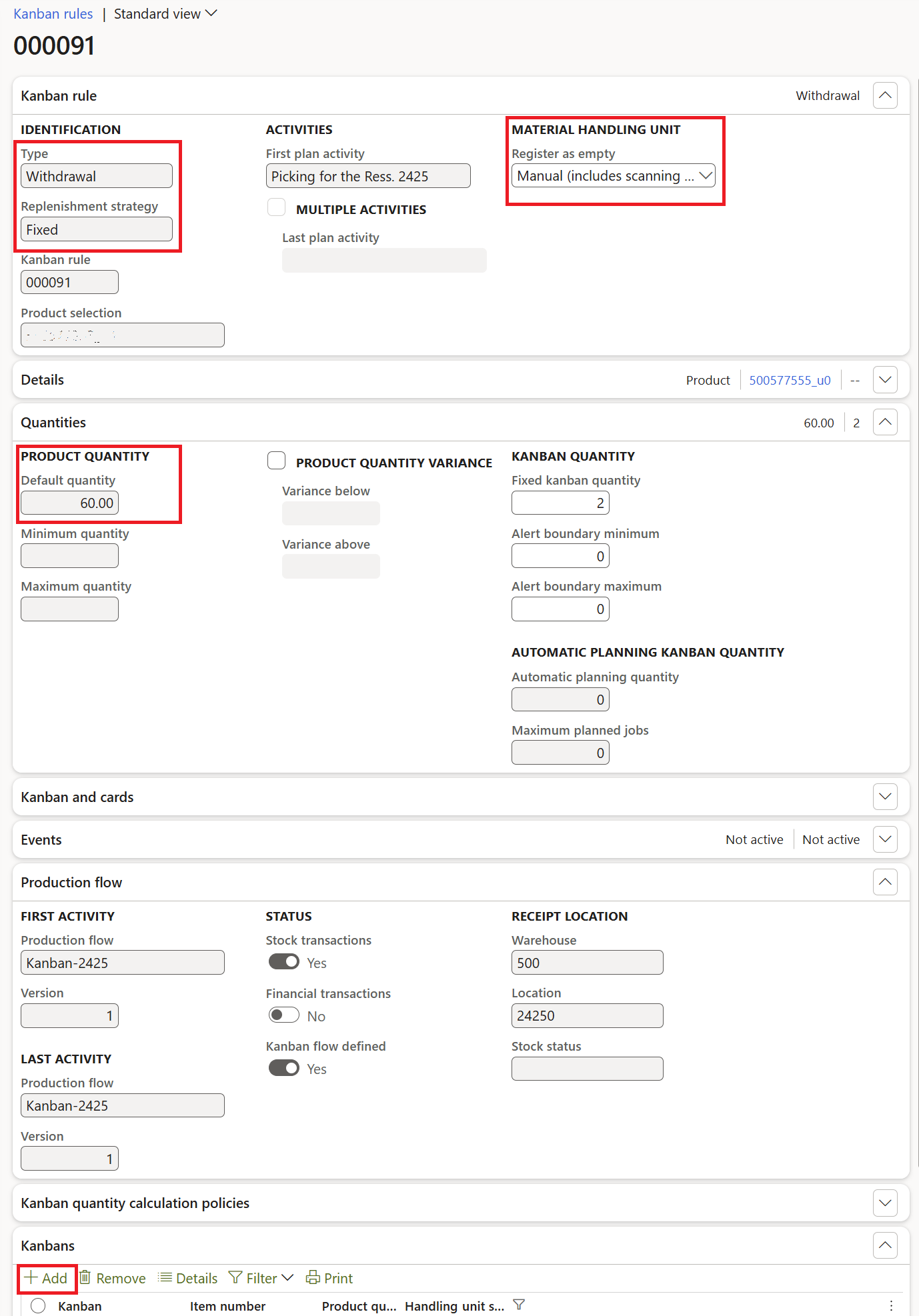
- At the bottom of the screen, you may pre-create the Kanban cards with the button + Add. Each becomes a unique barcode and a unique – and different from the barcode card number – Kanban number.
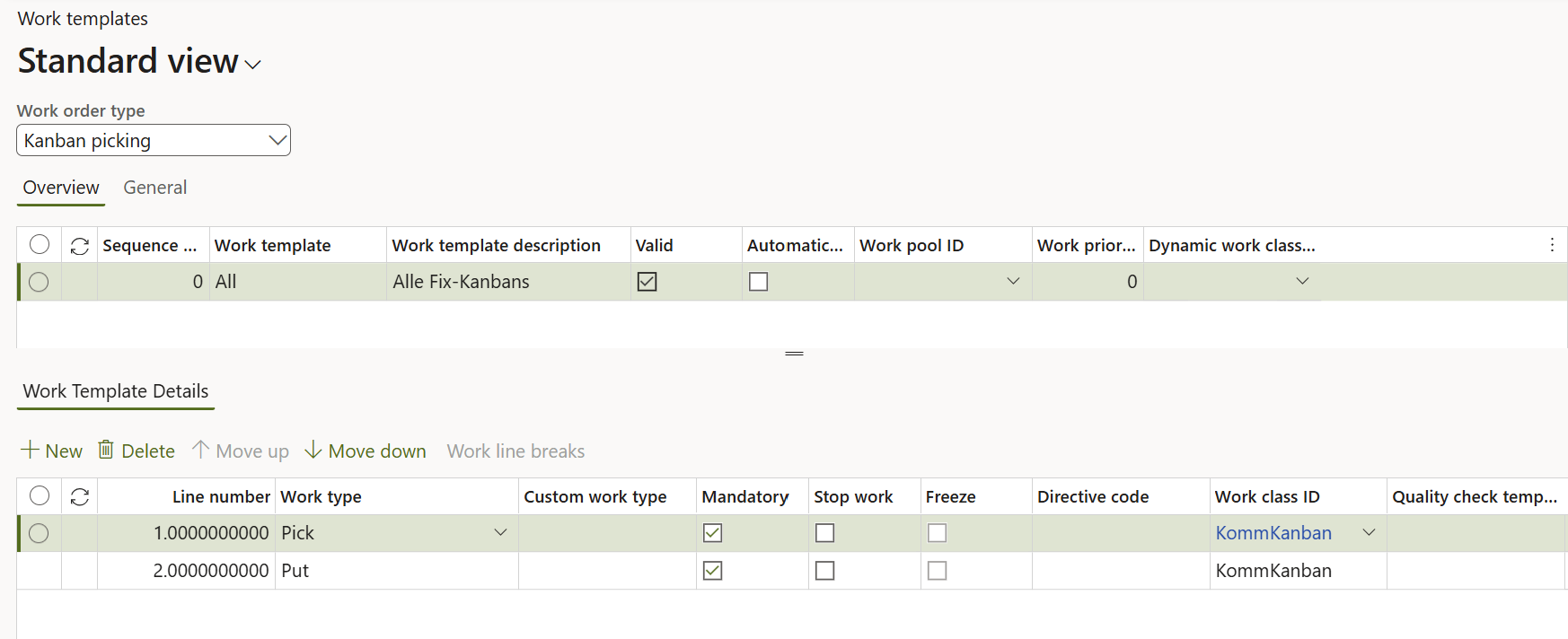
- Configure warehouse work classes and the work template: under Warehouse management > Setup > Work, create the work classes required for Kanban picking and putting, then a work template for the Kanban picking work order type with the following sequence:
- Under Warehouse management > Setup > Location directives, configure a directive for the Kanban picking work type. Use the directive query and actions to determine the source location from which the material is picked. This is where the actual warehouse source is controlled, independently of the destination defined in the production flow.
- No separate put-away location directive nor a Kanban put away work template is required for this scenario because the destination is given by the transfer activity.
- Under Warehouse management > Setup > Waves > Wave templates, configure the template used to process Kanban replenishment demand. Enable automatic wave creation and automatic release of work. Configure the remaining wave settings according to the intended processing flow.
- Test the process: scan a Kanban card on the Transfer Kanban board (Production control > Kanban > Kanban board for transfer jobs) to make it empty.

- The system creates the replenishment demand and processes the corresponding wave to generate warehouse work. The warehouse worker executes the picking and put operations, replenishing the container with the fixed quantity defined in the Kanban rule.
- After the put operation, the material is available at the resource location, and Auto complete by put line allows the transfer activity to be completed through that process: the Kanban resets and becomes Completed automatically, awaiting the new cycle.
Production and Manufacturing blog series
Further reading:
Assistance and Secondary operations in D365 for SCM
Integrate APS with Dynamics 365 for SCM
D365 Mass de-reservation utility
Picking list journal: Inventory dimension Location must be specified
Consumable “Kanban” parts in D365 Warehouse management
Subcontracting with Warehouse management Part 2
Subcontracting with Warehouse management Part 1
Semi-finished goods in an advanced warehouse
The case of a missing flushing principle