
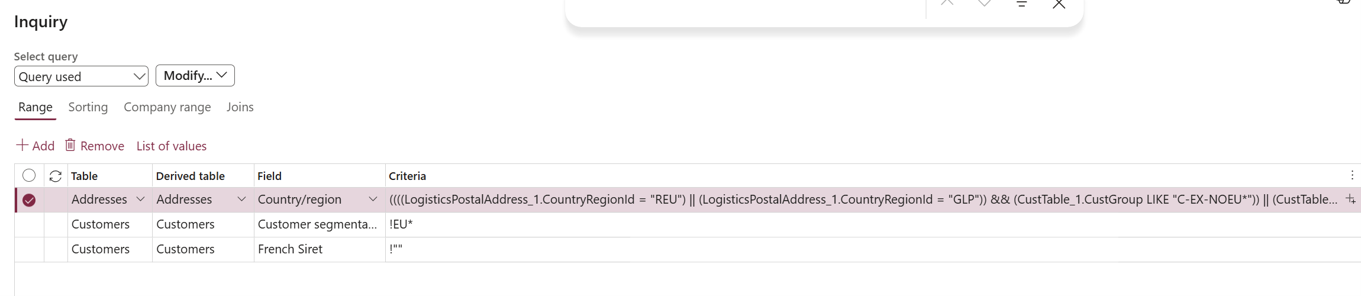
Microsoft documents the syntax for advanced queries in Dynamics 365 Finance here: Advanced filtering and query syntax – Microsoft Learn. The documentation contains an example of a query that uses fields from two data sources:
((AccountNum LIKE "US*") && (DirPartyTable.Name LIKE "Cont*"))
This is useful, but it does not really help you construct more complex queries when the required fields are several joins away from the primary data source. This was also the subject of a question in the Dynamics 365 Community: Seeking “Finance and Operations query syntax” examples from “Advanced filter or sort”.
In reality, the Microsoft’s example is even incorrect. When the query is entered in the Advanced filter or sort dialog, the system may not use the table name exactly as shown in the documentation. In the example above, the system-generated data source name can require a “_1” suffix, for example: DirPartyTable_1.Name rather than DirPartyTable.Name.
Let’s have a look at a more complex example, where customers should be filtered by the customer group, unless they are from specific “countries” (French overseas territories, to be exact). The customer group is available directly from the “CustTable”, but the country/region is stored in the address. The required tables are therefore: Customers → Parties → Addresses
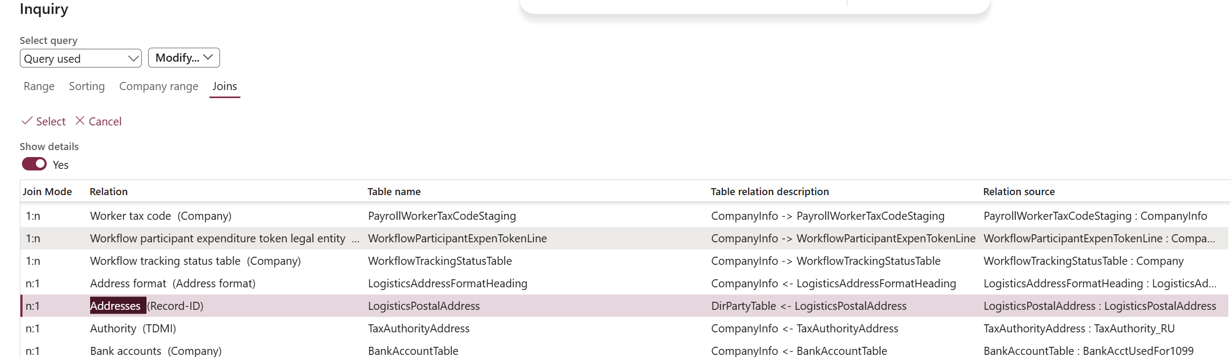
The required joins can be created directly in the Dynamics’ Query: on the Joins tab, select + Add table join and enable Show details. Scroll down to n:1 Global address book and select it. Then add another nested join to the Global address book and select n:1 Addresses.
The resulting structure is: 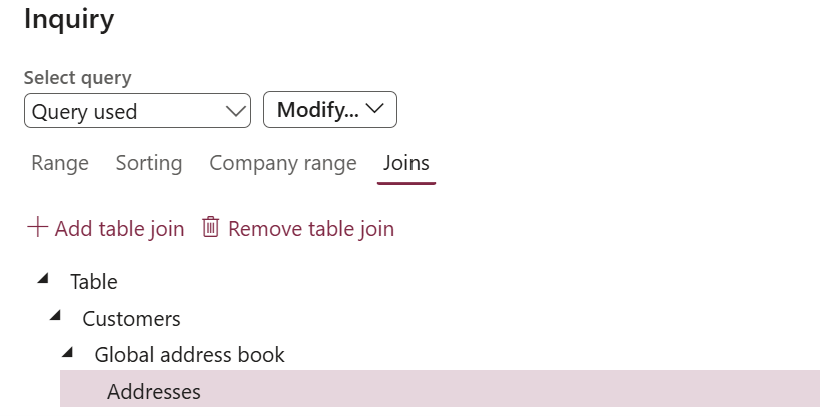
CustTable
└── n:1 Global address book
└── n:1 Addresses
It is important to use Show details and be able to select the n:1 relationships: there are also 1:n relationships in the list, but they return an empty dataset.
The range can then reference fields from both CustTable and LogisticsPostalAddress:
((((LogisticsPostalAddress_1.CountryRegionId = "REU") || (LogisticsPostalAddress_1.CountryRegionId = "GLP")|| (LogisticsPostalAddress_1.CountryRegionId = "MTQ"))
&& (CustTable_1.CustGroup LIKE "C-EX-NOEU*"))
|| (CustTable_1.CustGroup LIKE "*DO*"))
This means:((Country = REU, GLP or MTQ) AND Customer group = C-EX-NOEU*)
OR
Customer group contains DO
The same approach can be used for considerably more complex filters: fields from the primary table can be combined with fields from joined tables, and the &&, || and LIKE operators can be used to build the required expression.
Important notice: if you used a field in the body of an advanced query, do not use the same field in another range line of the Advanced filter or sort dialog. Unlike regular queries, these conditions will result in an AND clause, not in an OR clause as usual. In other words, if you added a line with an additional condition Customer group = “EX*”, then the query is not going to return any records at all, because a customer may not have a group like “*DO*” and “EX*” at the same time, unless there is an “EX-DO*” group.
Dynamics 365 tips and tricks

Further reading:
SysFlushAOD: Refresh SysExtension cache in D365FO
Batch jobs in D365: a Russian roulette
Cross-company data sharing vs. Duplication in Dynamics
Refresh master data cache in D365FO
Number of records in D365
Overwrite a read-only configuration in D365FO
Copy-paste automation in D365 FO with a keyboard emulator
Make yourself an Admin in Dynamics 365 Fin/SCM
Exposing Dynamics 365 Onebox to the LAN