Time Sheet-only role and access in Business Central

Time Sheet-only role and access in Business Central

A requirement came up to give users access to the Time Sheets in Business Central, without exposing any other part of the system. Even the Standard role “D365 TEAM MEMBER” is a way too broad for this, as they allow visibility into areas that are not relevant and may contain sensitive data. Other BC users where in pursuit of the same goal: Time Sheet View Only Access?

The solution was to introduce a dedicated role, for example “Timesheet User” based on the Service Manager role, combined with a custom permission set. The timesheet role can be downloaded here – Profile_PROJECT_TIMESHEETS – and imported via the Profiles (Roles) page.

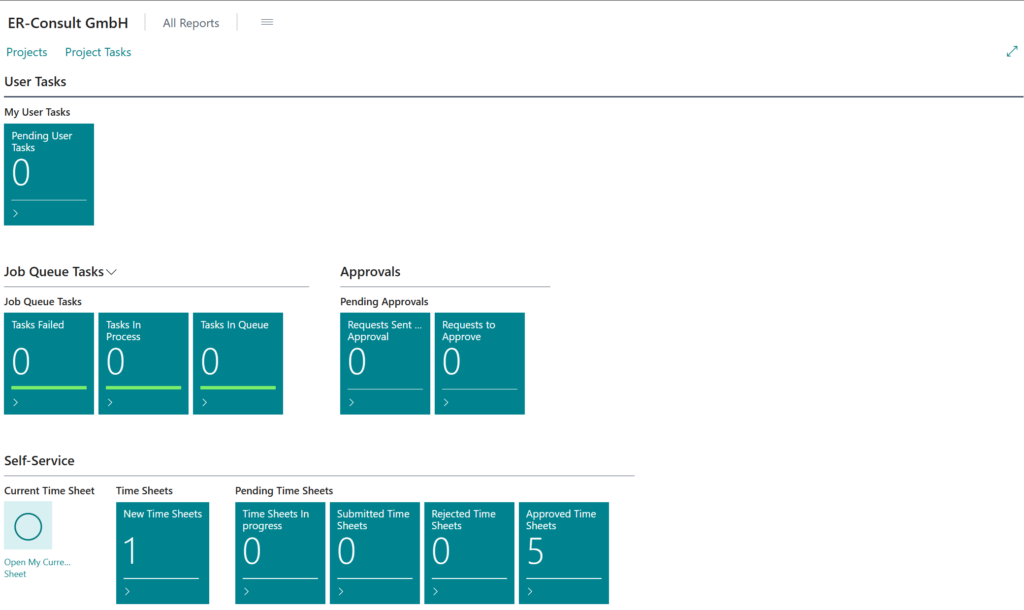
The assignment to the user(s) is on the page User Settings; assigning the “Timesheet User” role ensures that users not only have the correct permissions, but also a restricted user experience. With a tailored profile or role center, navigation can be limited to timesheet-related pages only, avoiding access to other areas of the system.

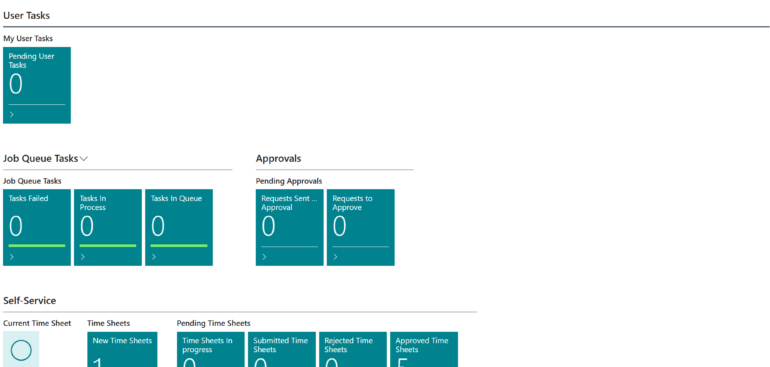
The permission set was built from scratch and only includes the required tables, these cover Time Sheet Header and Time Sheet Line, including archive tables, as well as supporting data such as Resources, Jobs, Job Tasks, Approval Entries, Workflow, cues and some others. These dependencies are necessary for the landing page to display correctly:
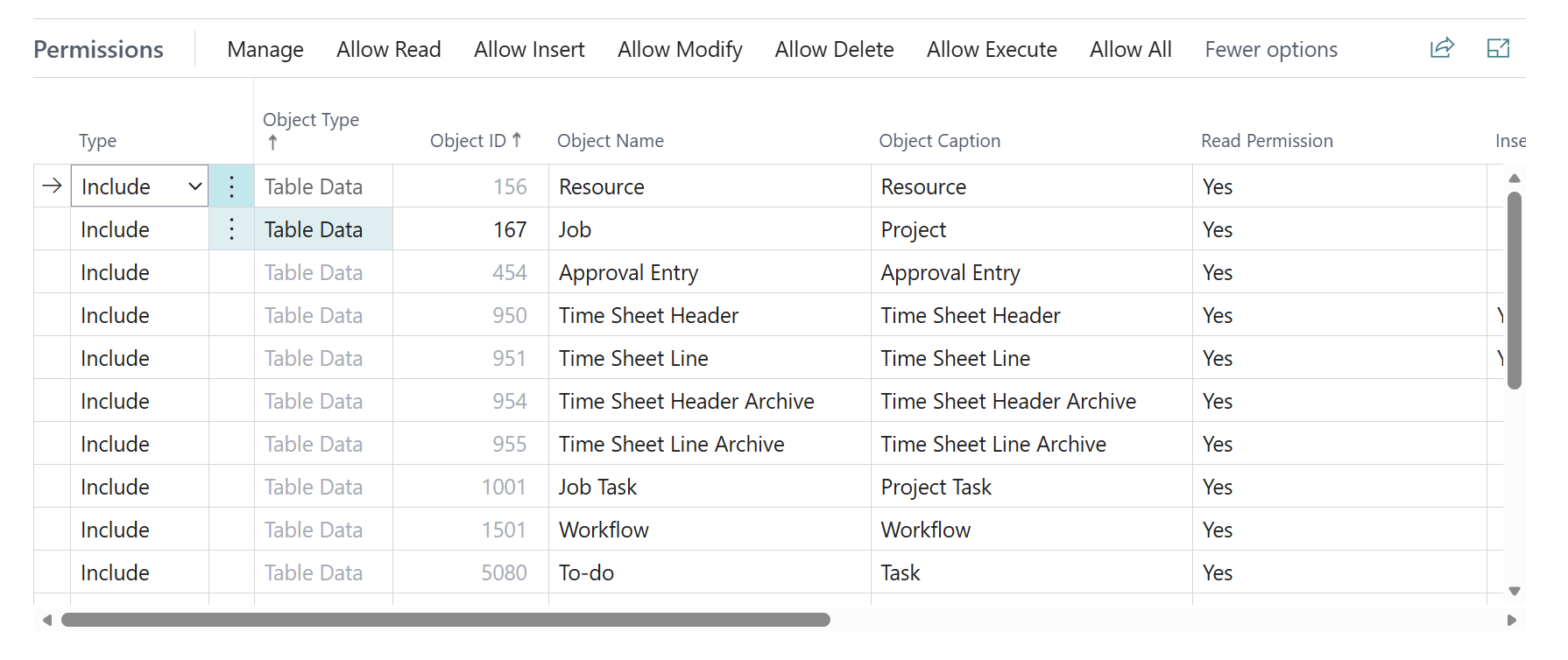
This custom permission set can be downloaded here: UserDefinedPermissionSets.zipunpack and import it via the Permission Sets page, assign to the user(s) via the User list / User Card.

To let the people see only their own timesheets, the Time Sheet Owner User ID may not be blank on the Resource Card, but populated with the respective user ID. The Time Sheet Approver User ID would be typically somebody else, the supervisor. On the User Setup, the user is marked to Register Time, but not as a Time Sheet Admin.

The result is a controlled setup where external users can enter and review the timesheets, including approved and archived entries, without visibility into finance, sales, or other business data.

D365 BC: Mix of input and output VAT in one credit note

D365 BC: Mix of input and output VAT in one credit note

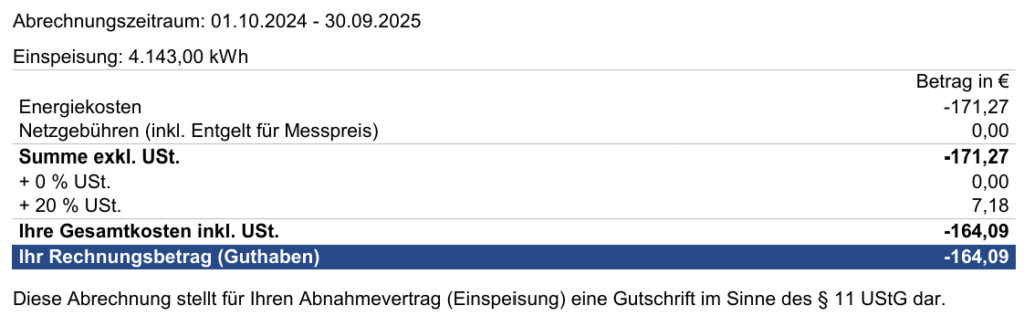
Once a year, I get a tricky invoice for the PV generation from my power supplier. They reimburse me for the delivery of the photovoltaic electricity into the power grid, and one invoice contains:

  • reverse charge (output VAT, 0%)
  • supplier services (input VAT, 20%)

If the energy is supplied to the grid by an entrepreneur to an entrepreneur, it is subject to VAT under the reverse charge mechanism. The reverse charge VAT is paid by the customer in this case, and the grid operator / utility company is the customer for the PV feed-in. However, usually they supply energy to our company i.e. they are registered as a vendor in the ERP system. The document is issued by the utility in my name under a self-billing arrangement (“Gutschriftsverfahren“). Consider the following:

  • the PV feed-in is a side revenue of my company;
  • one solution would be to register the vendor as a customer and perform the netting (see Consolidating customer and vendor balances in Business Central);
  • however, the invoice number is issued by the vendor. If the vendor is registered as a customer, the credit note can only be entered in the General journal as a generic GL transaction;
  • most of the revenue is VAT exempt under the reverse charge regime, but the supplier also included his services on top. These services (well hidden on the printed invoice) not only reduce the revenue, but there is also a VAT on top;
  • as a result, the credit note contains both the 0% output VAT (0% sales reverse charge) and the regular 20% input on services.

This was a tough case. The solution is to keep the vendor a vendor, posting revenue via a purchase document and mixing VAT directions in it.

Registering a purchase invoice did not work, D365 Business Central kept showing the Amount must be negative in Gen. Journal Line Journal Template Name=”,Journal Batch Name=”,Line No.=’0′. error. Unlike Dynamics 365 for Finance, in BC the Invoice and the Credit memo are 2 distinct document types, and the invoice may not be negative. Only the Credit memo can.

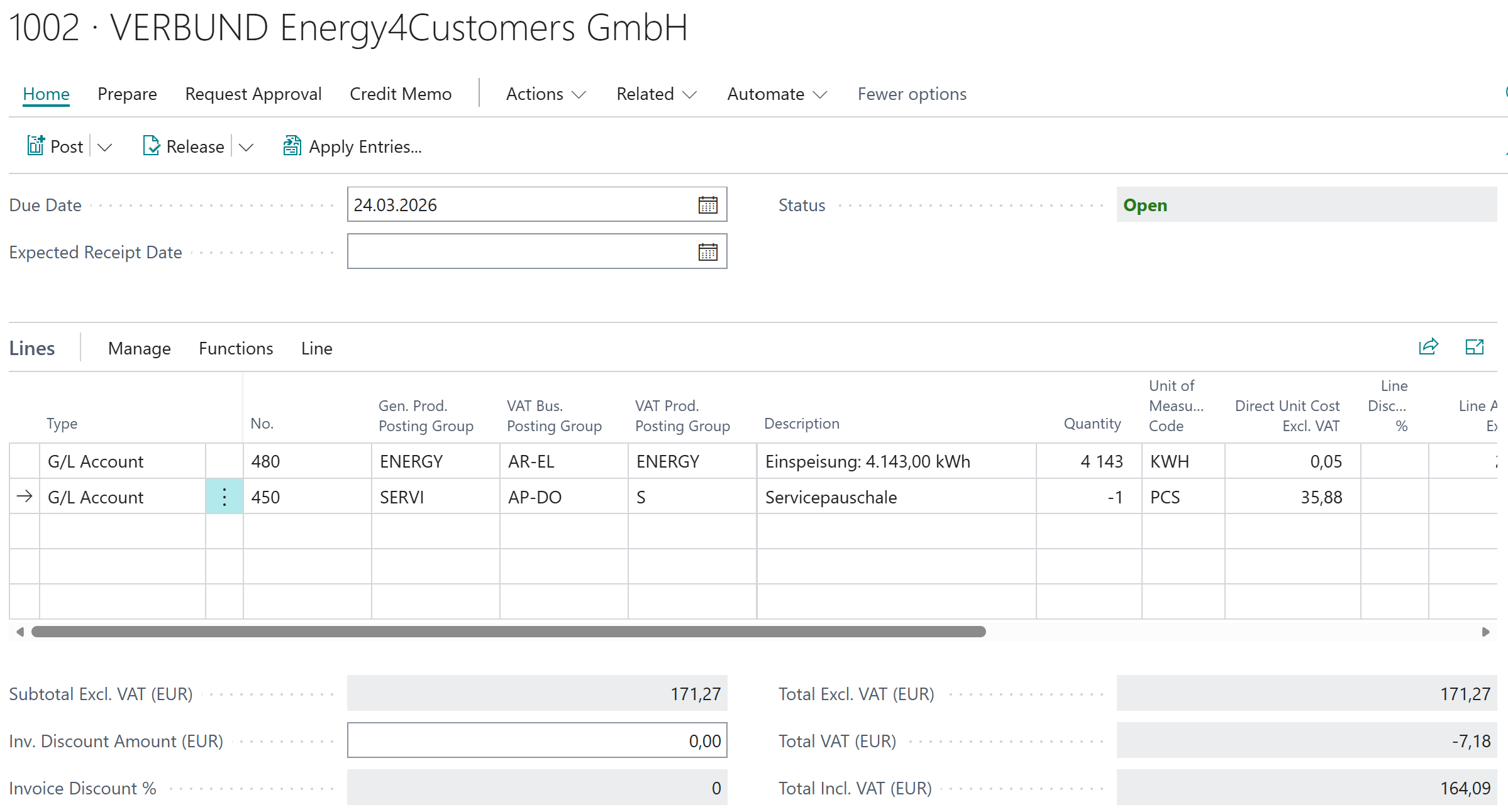
Enter a Purchase Credit Memo. In one line, enter the amount received for the PV feed-in in connection with a revenue account and select a customer (!) VAT Bus. Posting Group (the group must be made visible through a personalisation). This forces Business Central to treat the VAT as output VAT despite using a purchase document.

The service shall be entered with a negative quantity against a revenue reduction account, while the VAT group remains the regular one for the input VAT:

Purchase credit note with an output VAT in Business Central

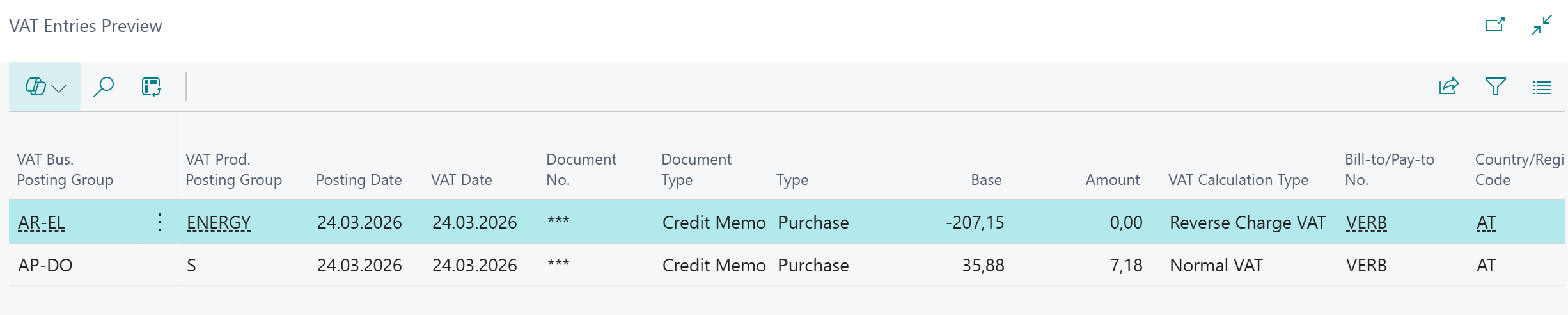
This credit memo produces 2 VAT entries, one for the [exempt] output VAT and one for the input VAT:

The reverse charge must be reported as such on the monthly VAT statement. Unlike D365 FO, the Business Central does not strictly follow the Sales direction of the VAT when making the VAT return. In the VAT statements matrix, add the Purchase VAT into the reverse charge section to record and report the PV turnover:

This has been a good example of how Business Central’s strict document types can be worked around by combining posting logic from both purchasing and sales VAT setups. Hope this saves someone else a few hours.