Biens ou Services ou Mixte?

Biens ou Services ou Mixte?

In the French e-invoicing reform, the electronic invoice must be classified as an invoice for goods “G“, an invoice for services “S” or mixed “M” (both goods and services). The 3rd group “Mixed” may be often tempting but must be assigned with caution: an invoice for goods with a complimentary [shipping] service on top remains an invoice for goods (we say, the service shares the VAT flavour of the core product), see Factures mixtes (biens + services) en facturation électronique 2026.

The same classification applies to export / EU deliveries provided to the authorities via a separate e-reporting data stream.

Let’s try to solve it step-by-step. In Dynamics 365 for Finance, the Free text invoice remains an invoice for services, “S”, as a rule. Beware: many companies use FTIs to sell fixed assets, these must be treated separately.

A Sales invoice may include both. Is there a way to classify an invoice as “G”, “S” or “M” without any knowledge but the e-invoice output alone? I tend to say yes: let’s assume the [electronic] invoice is ready and all custom units of measure at the lines have been converted into the UNECE standard. Then an invoice containing any of the units

KGM TNE GRM LTR CLT MLT MMT CMT MTR KMT CMK MMK MTK MTQ MMQ BAR PR SET DZN XBE XBG XBO XBX XCI XRL XCQ XCR XCS XCT XDR XBA NMP XPK XPX XPL XPU XRG XBB XSA LEF XTN XTU HLT XCY XEN LN

is likely to be an invoice for goods.

In contrary, an invoice with any of  HUR DAY WEE MON ANN SAN QAN MIN SEC E48 ACT KWT KWH MWH E25 should be an invoice for services.

The  C62  “a unit of something” may appear in both, thus excluded. As my reader pointed out, some companies sell software licenses in “pieces”  H87 , and this unit may be ambiguous, too. One should agree on the usage of for “H87” and “C62” in the company.  

Finally, an invoice with units from both 2 classes above would be a mixed one. In contrary, invoices with products and shipping or handling on top are realised differently in ERP systems: only with the product lines and header-level charges in addition. These will nicely fall into the “G” category, right where they belong.

Customer invoice falsifier for D365 for Finance

Customer invoice falsifier for D365 for Finance

In certain business scenarios, it may become necessary to update and reprint customer invoices in Dynamics 365 for Finance with corrected or intentionally adjusted figures. By selectively mapping only specific invoice header and invoice line fields for update, the ER configuration we are sharing here enables targeted adjustments without triggering recalculations of dependent totals. These electronic reporting configurations may also be used as a tutorial for the Excel imports in D365.

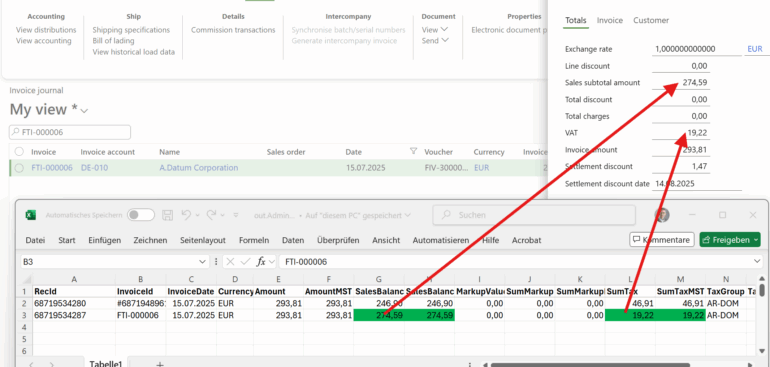
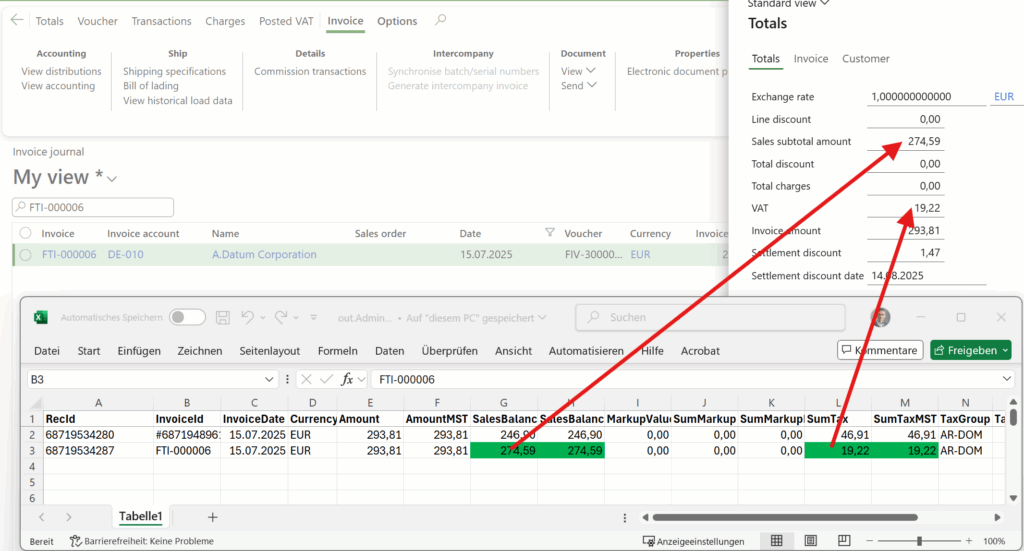
Check the above screenshot: assuming we’ve initially issued an invoice with 19% VAT instead of the reduced 7% VAT, the ratio between the SalesBalance (amount before VAT) and SumTax (total VAT amount) may be shifted while keeping the total invoice amount the same. Beware: to reflect the VAT manipulations in the tax books a separate [cumulative] GL journal must be posted manually. Please ensure any misaligned invoice reprints are clearly marked as adjusted copies to avoid confusion or compliance issues, though.

The underlying method uses the Electronic Reporting import configuration capabilities in Dynamics 365 for Finance. You may download the ER configurations here:  CustInvoiceUpdater.zip. Unpack and import into the ER tree one by one, starting with the model. Use it at your own risk!

Key elements include:

  1. Data Model – definition of the conceptual invoice structure (header amounts, line amounts, tax values, etc.).
  2. Model Mapping for export and a model mapping To destination for the import (both in the same model mapping ER configuration) – links the data model fields to the relevant Dynamics 365 tables and columns.
  3. Formats – define the export file structure (Excel) and the same import file structure and maps the file’s data to the model fields.

For a detailed description of the ER import concept and practical configuration guidance, check Electronic Reporting in Data Migration.

The process follows a three-step cycle:

  1. Export: extract invoice data from Dynamics 365 into an Excel using the “CustInvoiceJourDump format” ER export configuration.

  2. Adjust / Transform: modify the extracted data in Excel, changing selected amounts while leaving others untouched.

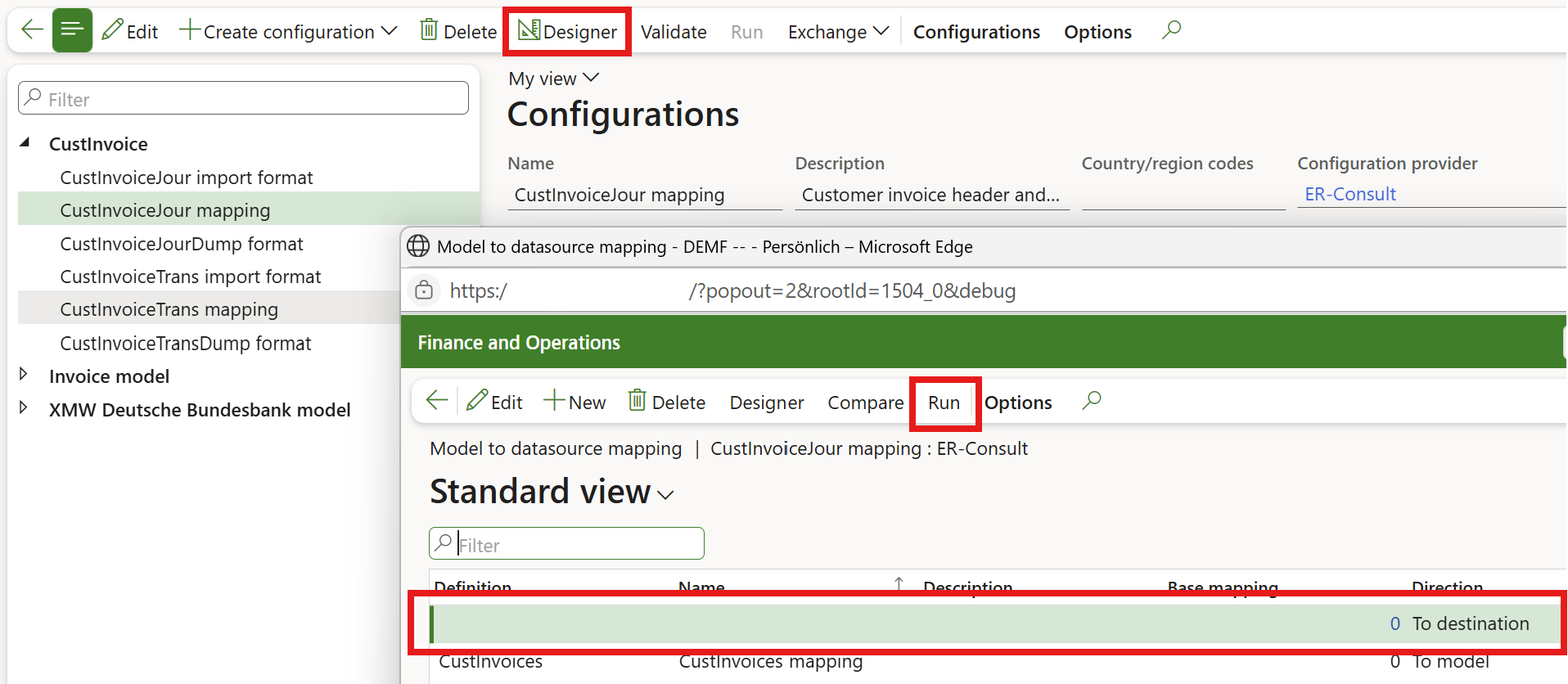
  3. Import: re-import the adjusted file by selecting the “CustInvoiceJour mapping” in the ER tree, clicking Designer, then Run at the “To destination” mapping, and uploading the Excel file. If the file is well formed and there is a match for every RecId of the invoice headers/lines, it updates the records in Dynamics 365 and says “Operation completed“.

In our scenario, the import mapping is deliberately limited to only 3 or better to say 6 amounts, both in the transaction currency and the accounting currency (the “MST” amounts): Sales subtotal amount, Total charges, VAT amount. A built-in validation ensures these three values still sum to the original invoice total, maintaining internal consistency while allowing the reprint to reflect updated breakdowns.

The “CustInvoiceTrans mapping” for invoice lines does not have this safeguard, since the invoice lines to not hold grand totals in D365.

The total invoice amount field was intentionally excluded from the update, because this may lead to a mismatch between the general ledger and the AR subledger.

Z4-Meldung an Bundesbank in D365 for Finance

Z4-Meldung an Bundesbank in D365 for Finance

The Z4-Meldung “Zahlungen im Außenwirtschaftsverkehr (abbreviated “AWV”) is a financial report that German companies must submit to the Deutsche Bundesbank as part of their external sector statistics. Companies are usually required to submit this report on a monthly basis, depending on the volume of transactions.

All German companies that engage in cross-border financial activities (e.g., loans, deposits, securities transactions) with a value above a specific threshold (currently €50000 per transaction) are required to submit this report. The worst part of it: not only  transactions with  non-EU countries must be reported, but inbound and outbound payments to EU countries as well. This is a nightmare in the tightly integrated EU economy.

Luckily, payments related to trade in goods (such as exports or imports) are not reported in the Z4-Meldung. These transactions are typically covered under other reporting mechanisms, such as the Intrastat for trade within the EU. Instead, the Z4-Meldung focuses on financial transactions unrelated to the direct exchange of goods e.g., loans, financial investments, and – most importantly – services. In particular, these transactions may be:

  • payments for services rendered for a foreign entity or paid to a foreign supplier,
  • for instance, freight costs
  • bank interests paid or received
  • cash discounts given to foreign customers or received from foreign suppliers
  • rebates received or paid
  • intercompany recharge to or from a foreign HQ or a subsidiary
  • VAT payments to a different EU tax authority. 

The Z4 report has a simple XML structure following their proprietary “XMW” schema: XMW – Elektronisches Meldewesen im XML-Format. In the regular payment process, in- and outpayments are classified with a transaction type (BELEGART) of “1” or “2”, respectively. In every transaction the foreign country is listed (ISO2), along with the transaction description and the amount in tsd. Euros. The sub-type classifier “KENNZAHL” poses a significant challenge: there are ~1000 codes in total from “A” for airfare through “S” for services till “U” for the use of software. This list from hell is published here in an inconvenient Excel file:  “Kennzahlenliste mit Belegarten”.

We are happy to share an Electronic Reporting configuration for the Z4 report in Dynamics 365 for Finance. Only the regular payment transactions (“DIKAPPOSTEN”) are supported, not shares or similar capital investments. To segregate payments by the highly detailed “KENNZAHL“, we suggest using the voucher prefix. For example, you may need to introduce different GL journal names for salary payments and commissions payments, both with distinct voucher number sequences. To avoid mistakes, we recommend separate payment methods, especially for goods and services, with every payment method to be processed in its own AP/AR payment journal.

Setup and use

  1. Download the 3 configurations here: XMW-Deutsche-Bundesbank-model-v5  
  2. Install them in the following order: XMW Deutsche Bundesbank model -> XMW Mapping -> Z4 (format). Beware: the configurations are provided to you “AS IS” and with all faults and defects without warranty of any kind.
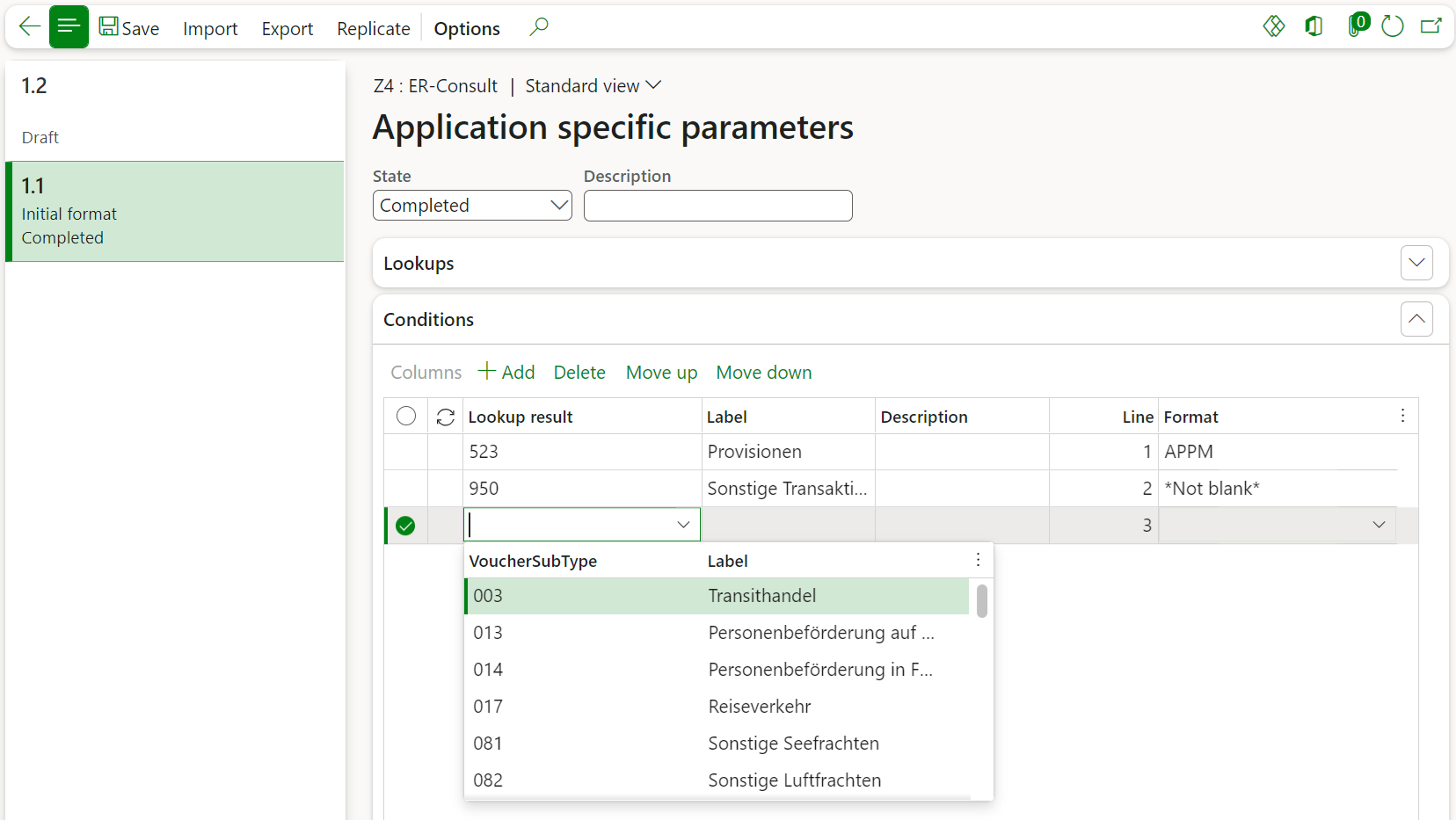
  3. Select the Z4 configuration and open Application specific parameters / Setup. You may Import a rudimentary setup here: Parameters 26-09-2024 09.43.13 pm_Z4.8.3.zip
  4. With this setup you match patterns in the voucher of the bank transaction to the “KENNZAHL” codes. In some cases, you may decide to start looking for keywords in the payment description instead. This will require a slight modification of the formula in model/Messages/Message/Transactions/$ClassifierEnum. Alternatively, you may start probing for vendors or introduce a special vendor group with regards to the Z4 reporting; this is going to require a minor adjustment in the mapping and the format.
  5. Set the status of the application specific parameters to Completed when ready.
  6. Select the Z4 format in the Electronic reporting tree and hit Run.
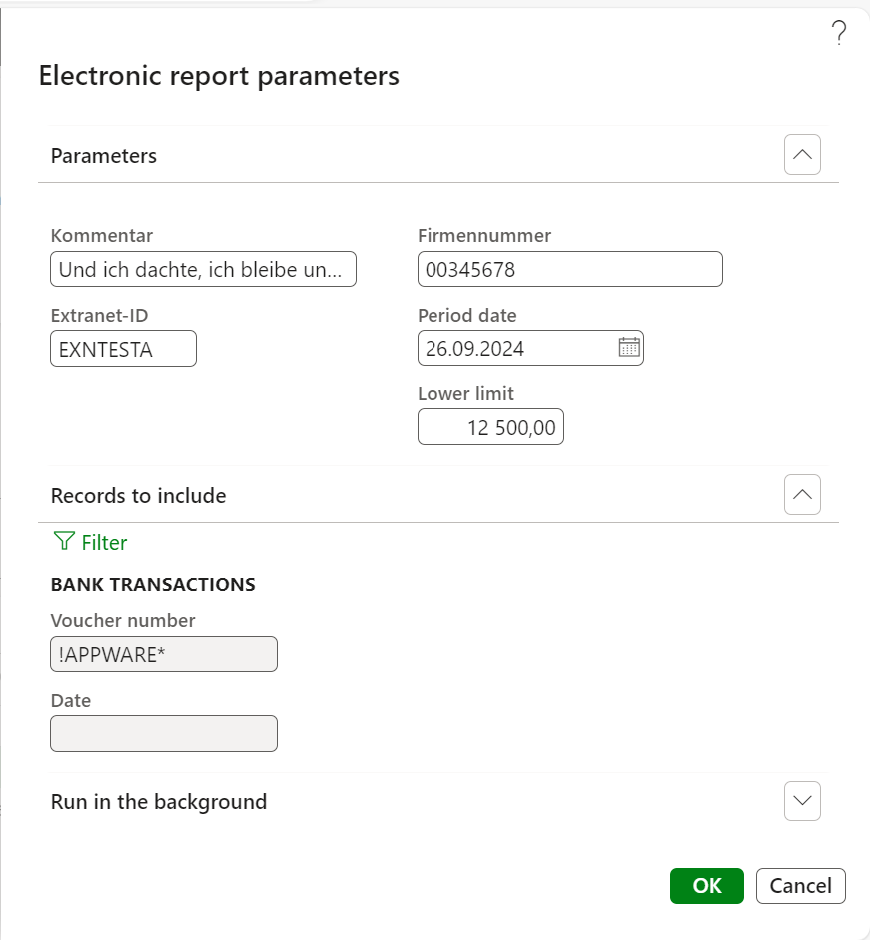
  7. The Firmennummer is the unique end-to-end ID issued by the Bundesbank at the registration. You may also set the Extranet-ID of the user, if known. The mandatory phone, e-mail and other contact information are extracted from the employee card of the current user (the user who is executing the report i.e. you).
  8. With the Period date you select the reporting period (month). An empty period date means the rolling current [session] month. Try to exclude bank transactions with regards to the trade of goods with the filter of Records to include, for example by the voucher number, if possible. You may also consider opening a different bank account for the regular intracommunity business. Again, try to separate payments of service, commissions etc. with distinct journals = voucher number.
  9. Hit OK and execute the report.
  10. You may also run the report in an unattended, batch mode. Configure an Electronic reporting destination such as an internal e-mail address or a SharePoint folder, schedule a monthly batch and keep the period date empty to support the rolling date. You can monitor the batch runs in Organisation administration > Electronic reporting > Electronic reporting archived jobs.

Result

The resulting file may look like this:

				
					<LIEFERUNG-AWZEL xmlns="http://www.bundesbank.de/xmw/2003-01-01" xmlns:xsi="http://www.w3.org/2001/XMLSchema-instance" 
xsi:schemaLocation="http://www.bundesbank.de/xmw/2003-01-01 BbkXmwAwzel.xsd" 
version="1.0" erstellzeit="2024-09-27T08:30:33+02:00" stufe="Produktion" bereich="Statistik" dateireferenz="1">
    <ABSENDER>
        <FIRMENNR>00345678</FIRMENNR>
        <NAME>ER-Consult GmbH</NAME>
        <STRASSE>Franz Lehar-Gasse 18</STRASSE>
        <PLZ>7111</PLZ>
        <ORT>Parndorf</ORT>
        <LAND>AT</LAND>
        <KONTAKT>
            <ANREDE>Miss</ANREDE>
            <VORNAME>Julia</VORNAME>
            <ZUNAME>Funderburk</ZUNAME>
            <ABTEILUNG>Sales & Marketing</ABTEILUNG>
            <TELEFON>425-555-5053</TELEFON>
            <EMAIL>julia@contoso.com</EMAIL>
            <EXTRANET-ID>EXNTESTA</EXTRANET-ID>
        </KONTAKT>
    </ABSENDER>
    <KOMMENTAR>Und ich dachte, ich bleibe unter dem Radar...</KOMMENTAR>
    <MELDUNG erstellzeit="2024-09-27T08:30:34+02:00">
        <MELDEPFLICHTIGER>
            <FIRMENNR>00345678</FIRMENNR>
            <NAME>ER-Consult GmbH</NAME>
            <STRASSE>Franz Lehar-Gasse 18</STRASSE>
            <PLZ>7111</PLZ>
            <ORT>Parndorf</ORT>
            <LAND>AT</LAND>
            <KONTAKT>
                <ANREDE>Miss</ANREDE>
                <VORNAME>Julia</VORNAME>
                <ZUNAME>Funderburk</ZUNAME>
                <ABTEILUNG>Sales & Marketing</ABTEILUNG>
                <TELEFON>425-555-5053</TELEFON>
                <EMAIL>julia@contoso.com</EMAIL>
                <EXTRANET-ID>EXNTESTA</EXTRANET-ID>
            </KONTAKT>
        </MELDEPFLICHTIGER>
        <MELDETERMIN>2024-09</MELDETERMIN>
        <VDR_04>
            <DIKAPPOSTEN belegart="2" kennzahl="523" zahlungszweck="Provision 2024">
                <BETRAG land="CN" landname="China" betragsref="APPM000063">18</BETRAG>
            </DIKAPPOSTEN>
        </VDR_04>
    </MELDUNG>
</LIEFERUNG-AWZEL>